Login
The Login screen is the entry point of the CoolR application, providing secure, passwordless access. Users can log in using an OTP sent to their email, ensuring a seamless and secure authentication process. The screen also offers language selection, help, and device information.
Layout
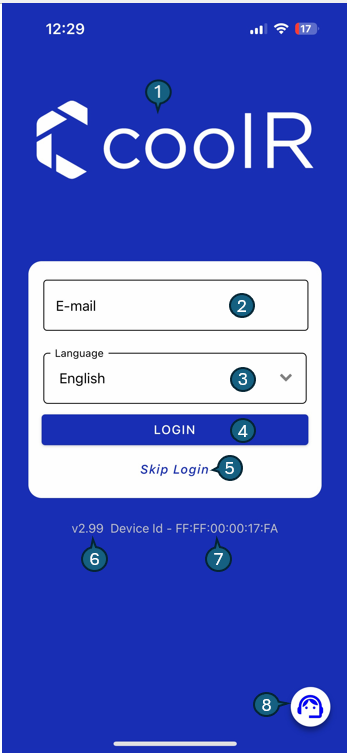
The Login Screen contains the following elements:
1. Default Login Screen
1. Logo
The CoolR logo is prominently displayed at the top of the screen, reinforcing brand identity and providing a familiar visual cue to users.
2. E-mail Input
A mandatory field where users enter their registered email address. This is required to initiate the login process and receive a One-Time Password (OTP) for secure authentication.
3. Language Dropdown
Allows users to choose their preferred language for the app interface. This ensures accessibility and localization, enhancing user experience across different regions.
4. Login Button
Triggers the OTP generation process using the entered email.
On tap:
- An OTP is sent to the provided email address.
- The user is navigated to the OTP verification screen to complete the login process.
5. Skip Login
Provides users with the option to bypass the login process, if the feature is enabled. Useful in demo or guest scenarios where login is not mandatory.
6. App Version
Displays the current version of the application at the bottom of the screen. This helps users and support teams reference the correct build during troubleshooting or updates.
7. Device ID
Shows the MAC address of the device. Useful for diagnostics, device registration, or support-related inquiries.
8. Help Icon
Positioned at the bottom-right corner, this icon provides quick access to support resources, FAQs, or help documentation to assist users with issues or questions.
2. OTP Screen
After clicking the Login button, the user is taken to the OTP screen:
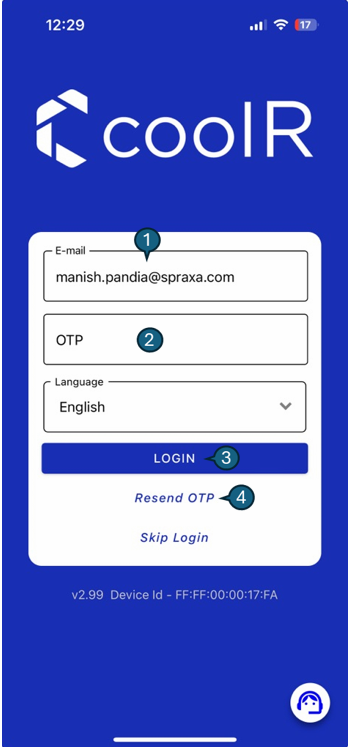
The OTP Screen contains the following elements:
1. E-mail Input
This field displays the email address previously entered by the user. It is read-only at this stage to maintain consistency during OTP verification and prevent accidental changes. The email is used to identify the user and send the one-time password (OTP).
2. OTP Input
A secure input field where users enter the One-Time Password (OTP) received via email. The field may mask input to enhance security. It validates the OTP against the server to ensure authentication is correct and timely.
3. Login Button
Once the user has entered the correct OTP, pressing this button triggers the login process. It submits the email and OTP to the server for validation. Upon successful verification, the user is navigated to the home or dashboard screen.
4. Resend OTP
If the user hasn't received the OTP or the previous one has expired, this option allows them to request a new OTP. A countdown timer or retry limit may be implemented to prevent abuse of this feature. Tapping this will resend the OTP to the registered email address.
Login Flow
- The user enters their email address and selects a preferred language (default is English).
- The user taps the Login button.
- An OTP is sent to the provided email address, and the OTP screen appears.
- The user enters the received OTP and taps Login to complete authentication.
- If the OTP is not received, the user can tap Resend OTP to request a new code.
- Language selection is available before logging in, allowing users to choose their preferred interface language.
- The Skip Login option enables users to access limited app features without authentication.
Security Considerations
- OTPs are time-sensitive and expire after a predefined duration.
- Invalid OTP attempts are limited to enhance security.
- Secure communication protocols (e.g., HTTPS) are enforced for authentication.
- Device ID and app version are displayed for transparency and support.
This login process ensures a secure and seamless experience, eliminating the need for passwords and reducing