Notes
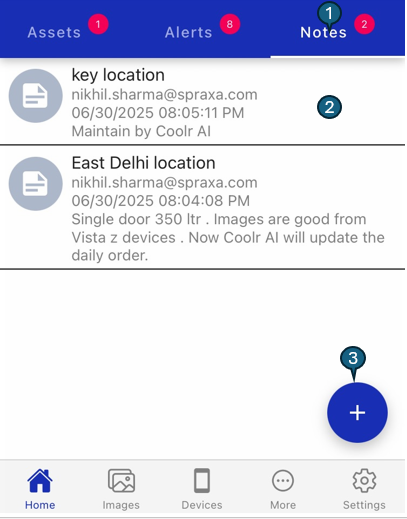
When the Notes tab is selected, you can view and manage all notes related to the location. The interface is organized as follows:
1. Notes Tab
Indicates that the Notes tab is currently active. The number next to "Notes" shows the total count of notes for this location.
2. Notes List
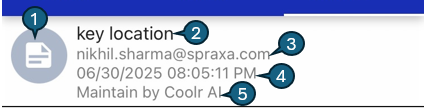
Each note entry displays the following details:
1. Note Icon
A small visual icon that represents each note entry, helping users quickly distinguish notes from other items in the list.
2. Subject
The main topic or title of the note. This provides a concise summary, allowing users to quickly understand the purpose or focus of each note.
3. Author
Displays the email address of the user who created the note. This helps identify who added the note and can be useful for follow-up or accountability.
4. Timestamp
Shows the exact date and time when the note was created. This information is useful for tracking the sequence of updates, comments, or instructions related to the location.
5. Description
Contains the full text or detailed description of the note. This section is used to provide context, instructions, observations, or any other relevant information associated with the note.
3. Add Notes
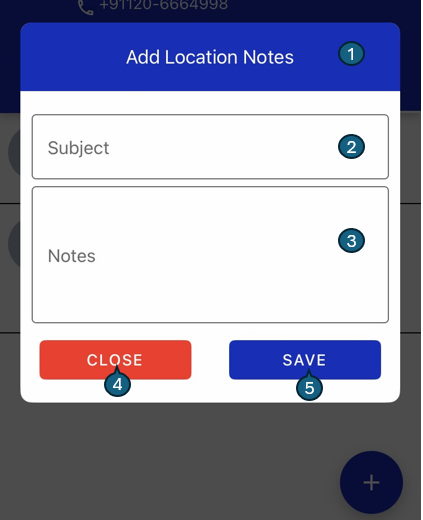
When you tap the floating plus (+) icon at the bottom right, the Add Location Notes dialog appears. This dialog allows you to add a new note for the location and is organized as follows:
1. Title
The title at the top clearly indicates that you are adding a new note for the location.
2. Subject
Enter the main topic or title of your note here. This helps summarize the note’s content.
3. Notes
Enter the detailed text or description of your note in this area. Use this space to provide context, instructions, or any relevant information.
4. Close Button
Tap Close to exit the dialog without saving your note. No changes will be made.
5. Save Button
Tap Save to add your note. The new note will appear at the top of the notes list, ensuring the latest information is always visible.
The Location Detail screen centralizes all relevant information and actions for a location, making it easy to manage and interact with your outlets and their assets efficiently.