Ordering
The Ordering tab is available at the outlet (location) level and provides order-related details similar to Playbook. In CoolR Mobile App, the Ordering tab appears at the location level next to the Asset tab, ensuring consistency between Playbook and CoolR Mobile App.
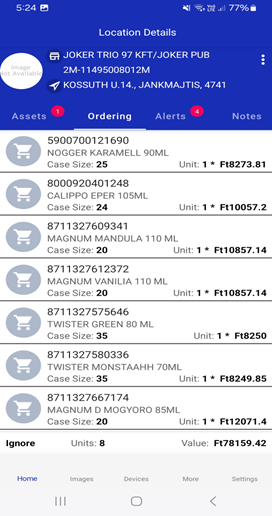
How to access the Ordering tab
- Open the Home screen.
- Click on an outlet.
- Navigate to the Ordering tab (next to the Asset tab).
Ordering details displayed
The Ordering tab displays the following information (same as Playbook):
- Product
- SKU
- Case Size
- Units
- Value
- Current Order Status
Order status synchronization
- Order status appears at the bottom-left corner of the screen.
- Supported statuses: Inbox, Ignore, Scheduled, In-Transit.
- Status changes in Playbook are automatically reflected in CoolR Mobile App, ensuring real-time alignment.
Order summary
The Ordering tab also displays summary information:
- Total Units
- Total Value
This provides a quick overview of the overall order.
Role-based control
The Ordering tab is visible only when access has been granted.