Diagnostics/ Configure
The Diagnostics/ Configure feature lets users scan, monitor, and sync CoolR smart devices. It shows real-time device status and provides access to synchronization operations.
Layout
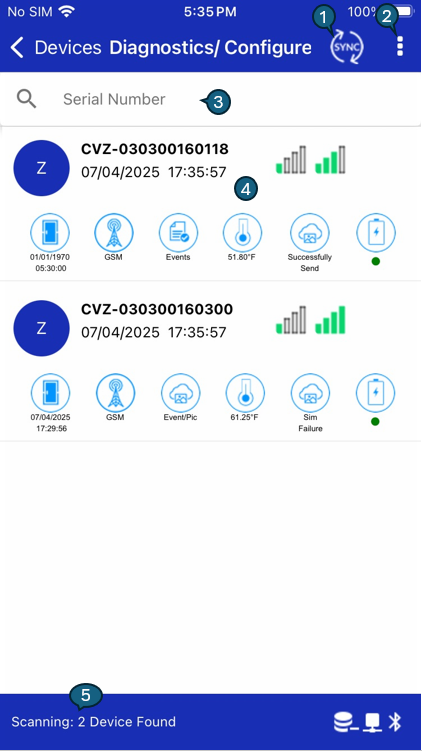
1. Sync button
| Step | Description |
|---|---|
| Idle | Initializes the sync process. |
| getVHInfo | Retrieves the hub (mobile) configuration and saves it to settings. |
| scanDevices | Scans devices for 45 seconds and sorts them by RSSI signal strength. |
| updateDeviceList | Connects to and validates detected devices. |
| getRemoteCommand | Fetches and executes remote commands from the server on the device. |
| downloadDeviceData | Downloads device data and images from selected devices. |
| uploadRNLogsDB | Uploads logs to the server. |
| uploadRemoteCommandData | Uploads remote command execution data. |
| uploadDeviceData | Uploads downloaded device data. |
| uploadImages | Uploads captured images to the server. |
| reschedule | Schedules the next service run. |
2. Action icon
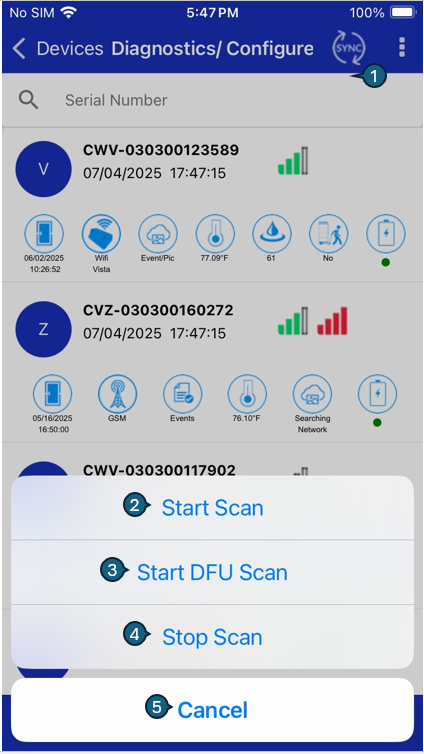
Tapping the action icon opens a bottom sheet with scan options:
| Step | Option | Description |
|---|---|---|
| 1 | Action icon | Located at the top right, next to the Sync icon. Opens the scan options. |
| 2 | Start Scan | Initiates a standard BLE scan. Nearby devices appear with advertisement data. |
| 3 | Start DFU Scan | Scans for devices in DFU (Device Firmware Update) mode for firmware upgrades. |
| 4 | Stop Scan | Stops any ongoing scan. |
| 5 | Cancel | Closes the menu without performing any action. |
Once a scan starts, devices with Bluetooth enabled will appear in the list.
3. Search
Use the search bar to find a device by serial number.
4. Device list
The Device List shows key information for each device: device ID, BLE RSSI, GSM strength, temperature, and connection status.
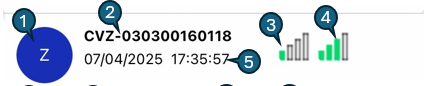
4.1 Device summary
-
Avatar
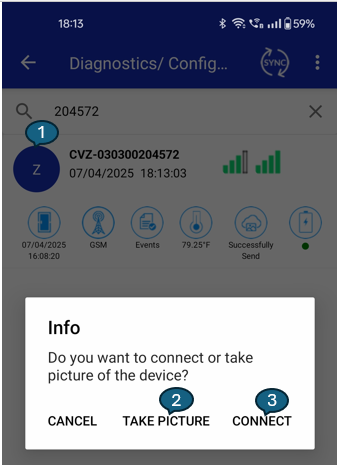
- The circular icon shows the first character of the device ID (for example, "Z" for CVZ-030300204572).
- Tap or long-press to open device-specific actions:
-
Connect — initiate a real-time connection, run commands, and show responses on the device detail screen.
-
Take Picture — trigger the device camera, download the image, upload it, and preview.
-
Cancel — close the action menu.
Take Picture process: the app connects to the device, triggers the Take Picture command, reconnects to download the image, and then displays a preview.
tip-
Before starting this process, Device should be in BLE Mode
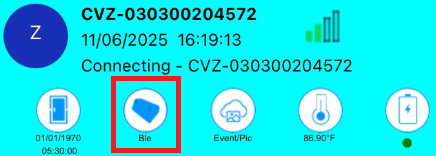
Device connected 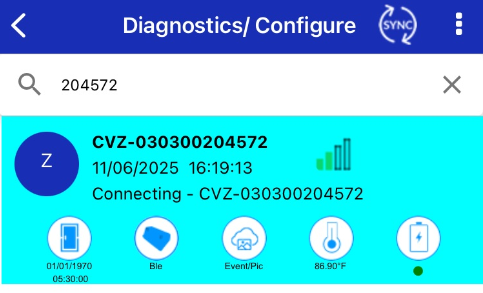
Image captured 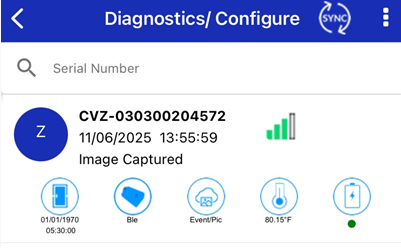
Image downloading 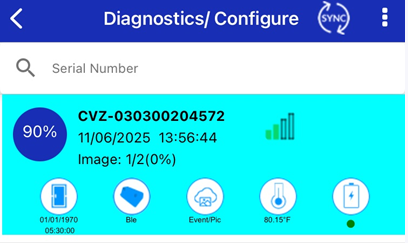
Image preview 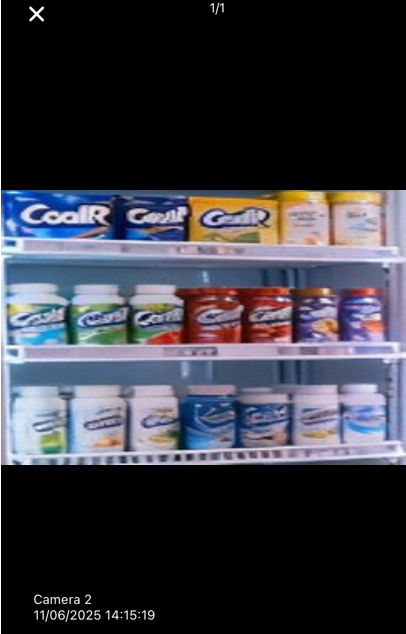
-
-
-
Device Serial: A unique identifier assigned to each device. Example: CVZ-030300204572.
-
BLE RSSI: Displays Bluetooth Low Energy (BLE) signal strength.
-
Connectivity indicator (GSM strength): A red icon indicates poor RSSI; a green icon indicates good RSSI.
-
Last sync date & time: Shows the last successful communication timestamp (for example, 07/04/2025 17:35:57).
4.2 Device status details
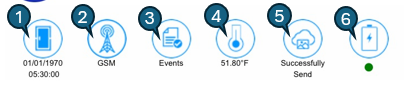
This section provides detailed status information such as reading timestamps, network info, temperature, and battery level.
-
Last door capture time : Timestamp of the latest door capture.
-
Network type : Current network connection type (for example, GSM).
-
Events / Image : Indicates whether events or images have been recorded or triggered.
-
Temperature : Latest recorded temperature (for example, 51.8 °F).
-
Data status : Status of the last data communication (for example, "Successfully sent").
-
Battery : Battery level is shown with an icon; a green dot indicates healthy battery status.
5. Footer

| # | Element | Functionality |
|---|---|---|
| 1 | Service status | Displays the current service status. |
| 2 | Data icon | Shows data availability; a plus (+) indicates additional data. |
| 3 | Network status icon | Shows the device's network connectivity status (connected/disconnected). |
| 4 | Bluetooth icon | Indicates whether Bluetooth is on and if scanning is available. |