Surveys Overview
This document explains the Surveys section available on the Location Details screen. The Surveys tab helps users track pending (Assigned) and completed (Submitted) surveys for a selected outlet/location, along with their priority, recurrence, and submission details.
1. Surveys Tab Selection
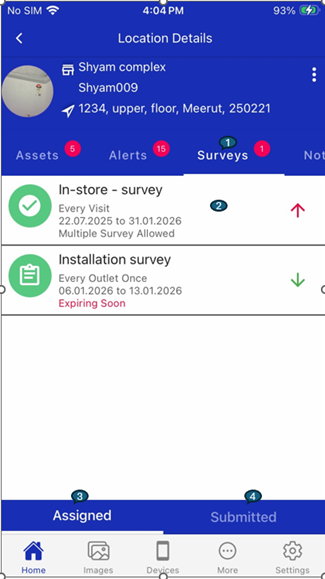
- The Surveys tab highlights when it is active.
- The numeric indicator shown next to the Surveys tab represents the total count of pending (assigned) surveys for the selected location.
- This helps users quickly identify whether any surveys require immediate action.
2. Survey Details Overview
The Surveys section is divided into two tabs:
- Assigned – Displays surveys that are available and pending for execution.
- Submitted – Displays surveys that have already been completed and submitted.
Each tab presents survey information in a structured and easy-to-understand format.
3. Assigned Tab
The Assigned tab lists all surveys that are currently available to be performed at the selected outlet.
Assigned Survey Attributes
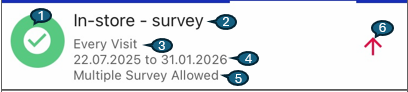
Each assigned survey entry includes the following details:
-
Avatar Icon – Indicates that the survey is available for execution.
-
Survey Name – Displays the name of the assigned survey.
-
Recurrence Period – Shows how often the survey can be performed. Supported recurrence types include:
- Every Visit
- Every Outlet Once
- Once per Week
- Once per Month
- Once per Quarter
- Once per Year
-
Survey Start & End Date – Displays the validity period of the survey, including the start and end dates.
-
Recurrence Frequency – Indicates whether multiple submissions are allowed within the defined recurrence period (e.g., Multiple Surveys Allowed).
-
Priority Icons – Visually represent the urgency of the survey using color and arrow direction:
- Red Up Arrow – High priority survey
- Green Down Arrow – Low priority survey
4. Submitted Tab
The Submitted tab displays surveys that have already been completed and submitted by users.
Submitted Survey Attributes
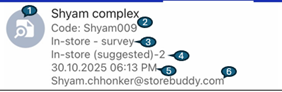
Each submitted survey entry includes the following details:
-
Avatar Icon – Indicates that the survey has been successfully submitted.
-
Outlet Name & Code – Displays the outlet name along with its unique outlet code.
-
Survey Name – Displays the name of the submitted survey.
-
Questionnaire Name – Shows the name of the questionnaire used for the survey submission.
-
Survey Submitted Date & Time – Displays the exact date and time when the survey was submitted.
-
Submitted By – Displays the email address of the user who submitted the survey.
5. Key Benefits
- Clear separation between pending and completed surveys
- Easy identification of high-priority surveys
- Full visibility into survey recurrence, validity, and submission history
- Ensures surveys are completed on time and tracked efficiently
This structured view enables field users and administrators to efficiently manage survey execution and monitoring across locations.