Camera Selection
The Camera Selection screen is used to associate a specific asset or location with a barcode or manually entered identifier. This screen supports both manual input and barcode scanning, ensuring flexibility during field operations.
Layout
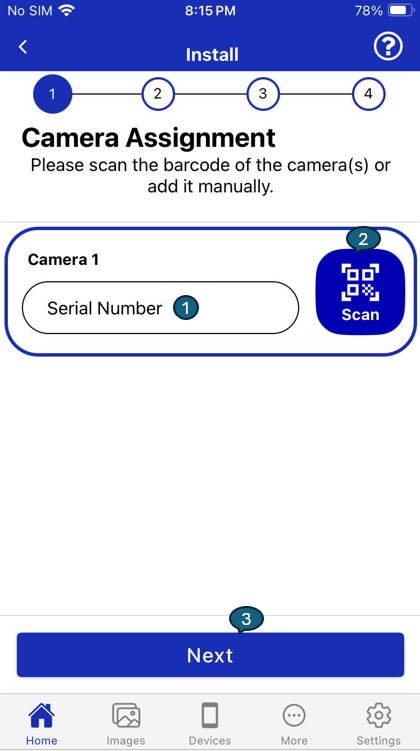
Elements
1. Text Input
This field allows users to manually enter the serial number of the camera. It supports alphanumeric characters and provides a fallback when barcode scanning is not available or practical.
2. Barcode Scan
The Scan button opens the device's camera to read the barcode of the camera. Once a valid barcode is detected, the serial number is automatically populated in the text input field for user confirmation.
3. Firmware Upgrade
This feature allows users to upgrade the firmware based on their choice through a checkbox selection. Firmware upgrade priority is categorized into three levels:
| Description | Image |
|---|---|
| Recommended: We strongly recommend upgrading the firmware at the time of installation. |  |
| Available: The latest features and optimizations are available. The user can upgrade the firmware by selecting the checkbox. |  |
| Not Required: The device already has the latest firmware. Upgrading at installation is not required but can be done remotely in the future if needed. |  |
This firmware upgrade option requires permission. If the checkbox is disabled for you, please contact CoolR Support for access.
4. Next Button
The Next button becomes active once a valid serial number is either entered or scanned. Tapping this button proceeds to the next step in the installation process.
Functional Behavior
- If a barcode is scanned, the text input is automatically populated, and the user can tap Next to continue.
- If entering data manually, the user must input a valid identifier and then press Next.
- The input field must not be empty to proceed.
- This screen is optimized for speed and usability during field operations such as installation, audits, or servicing.