
Appearance
Inbox: review each survey submission
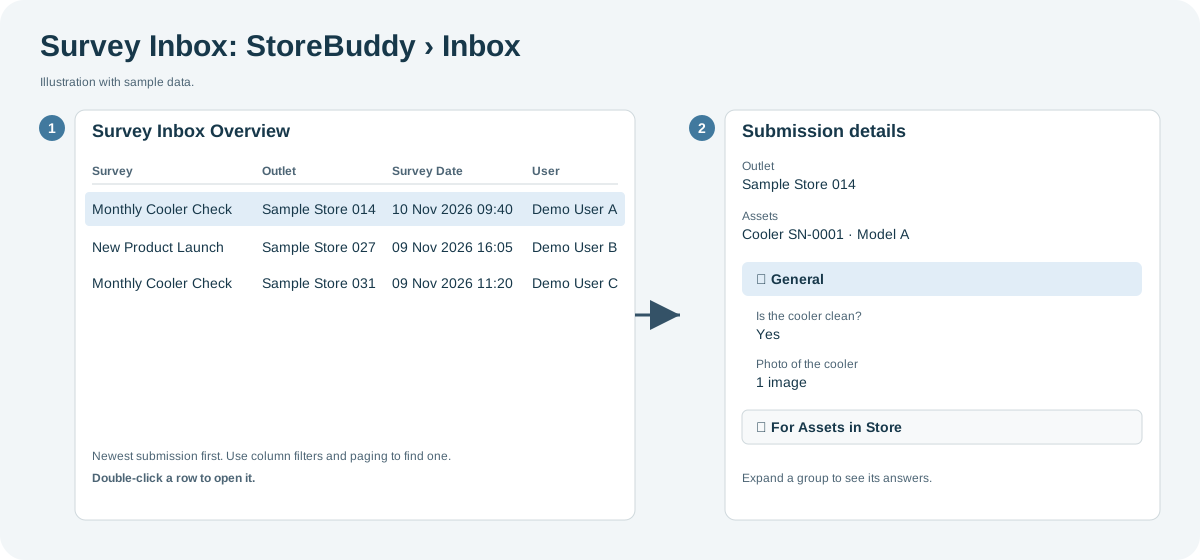
The Survey Inbox lists every submitted survey, newest first, so you can open any single store visit and see exactly what the rep answered and photographed. Use it to follow up on one outlet or one rep. To see activity across many submissions, use the Dashboard or Result Analysis.
Who uses it: managers, supervisors and administrators. Where: StoreBuddy › Inbox. The inbox is read-only.
Find a submission
The list shows submissions from the last 30 days by default. Change or clear the date filter to see older ones.
| Column | Shows |
|---|---|
| Survey Name | The survey that was submitted. Select it to open the submission. |
| Survey Category, Questionnaires | The survey's category and the questionnaire it uses. |
| Outlet, Outlet Code | Where the survey was completed. |
| Markets, Channels, Classifications | The outlet's market, channel and classification. |
| Latitude, Longitude | Where the submission was recorded. |
| Survey Date Time | When the survey was completed. |
| User | The rep who submitted it. |
Use the column filters and paging to narrow the list.
Open a submission
- Double-click a row, or select the survey name.
- The details show the outlet, its assets and their model.
- Expand a question group to see the answers and photos.
Export
- Export downloads the list as shown.
- Export with details adds a row for every answer, with the questionnaire, section, question, answer, attachment and user, for analysis outside Playbook.