
Appearance
StoreBuddy in Playbook: configure surveys and analyze results
The StoreBuddy menu in Playbook is where you set up the surveys field reps complete in the StoreBuddy mobile app, and where you review what they submit. For what StoreBuddy does in the store, see the StoreBuddy overview.
The screens and actions you see depend on your permissions and account configuration.
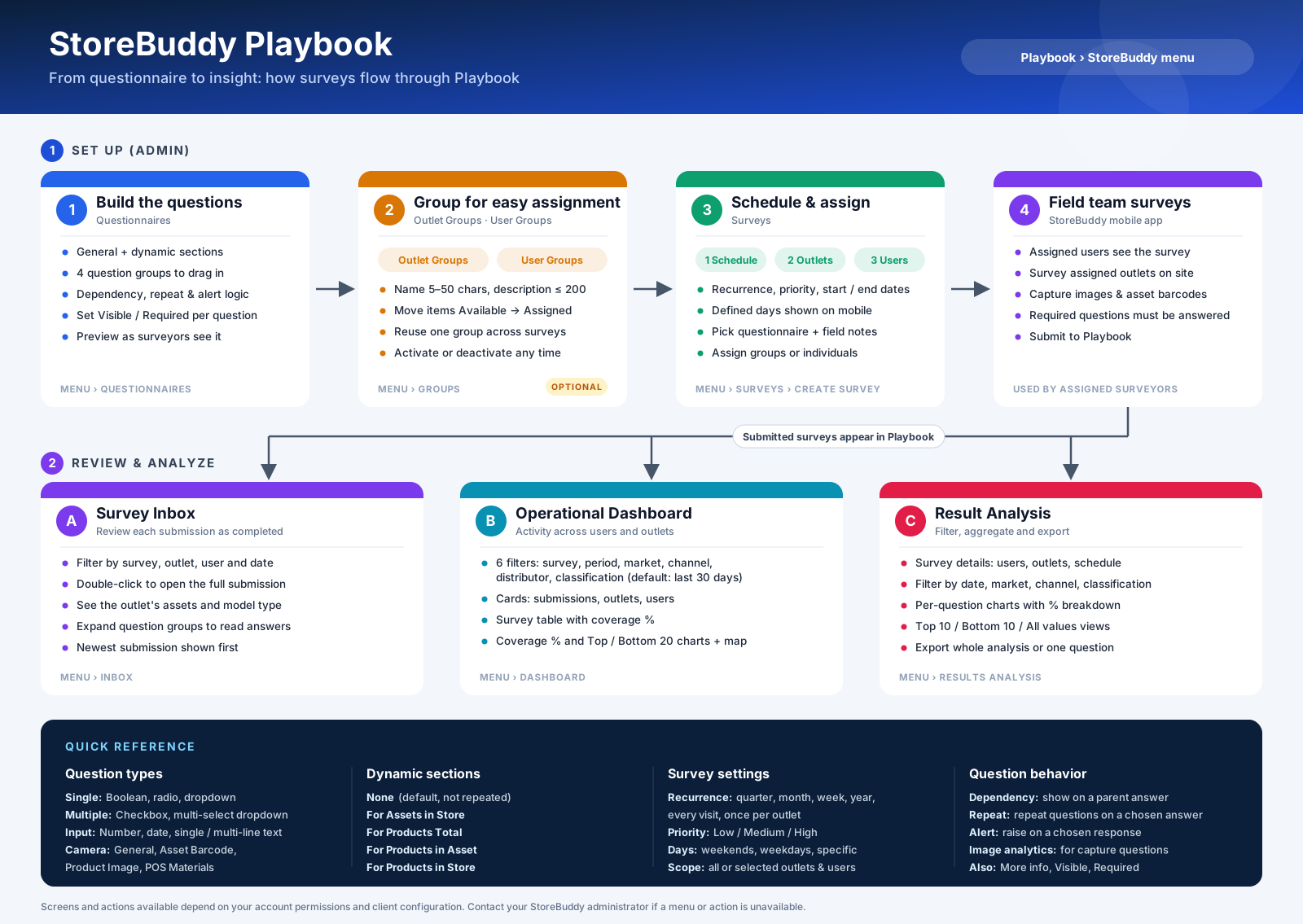
Select the infographic to view it at full size. All screen illustrations in this section use sample data.
Set up
Administrators prepare what reps see in the app, usually in this order:
| Screen | Purpose |
|---|---|
| Questionnaires | Build the questions, photo steps and logic a survey uses. |
| Outlet Groups | Group outlets so a survey can be assigned to all of them at once. Optional. |
| User Groups | Group users, such as a field team, for the same reason. Optional. |
| Surveys | Schedule a questionnaire and assign it to outlets and users. Assigned reps then see it in the app. |
Review and analyze
Managers follow up on what was submitted:
| Screen | Purpose |
|---|---|
| Inbox | Open any single submission and see every answer and photo, as it was completed. |
| Dashboard | Track activity and coverage across surveys, users and outlets. |
| Result Analysis | Filter, chart and export the answers of one survey. |
If something is missing
- A rep can't see a survey in the app: check on Surveys that it is active, within its dates and defined days, and assigned to that user and outlet.
- An outlet or user is not in a list: clear the list filters, then ask your administrator to check the record.
- The inbox, dashboard or analysis is empty: widen the date range or clear filters, and check that submissions exist.