
Appearance
Questionnaires: build the questions for a survey
A questionnaire is the content of a StoreBuddy survey: the questions, the photo steps, the order they appear in, and the logic that decides what a rep is asked next. You build it once and can use it in several surveys, each with its own schedule and assignment.
Who uses it: administrators who design store visits. Where: StoreBuddy › Questionnaires.
Create a questionnaire
- Open StoreBuddy › Questionnaires and select Create Questionnaire.
- Enter a title and description and set the status.
- In Edit, drag question types from Question Types into the editor and fill in each question.
- Select Preview to check the questions and flow as a rep sees them in the app.
- Select Save.
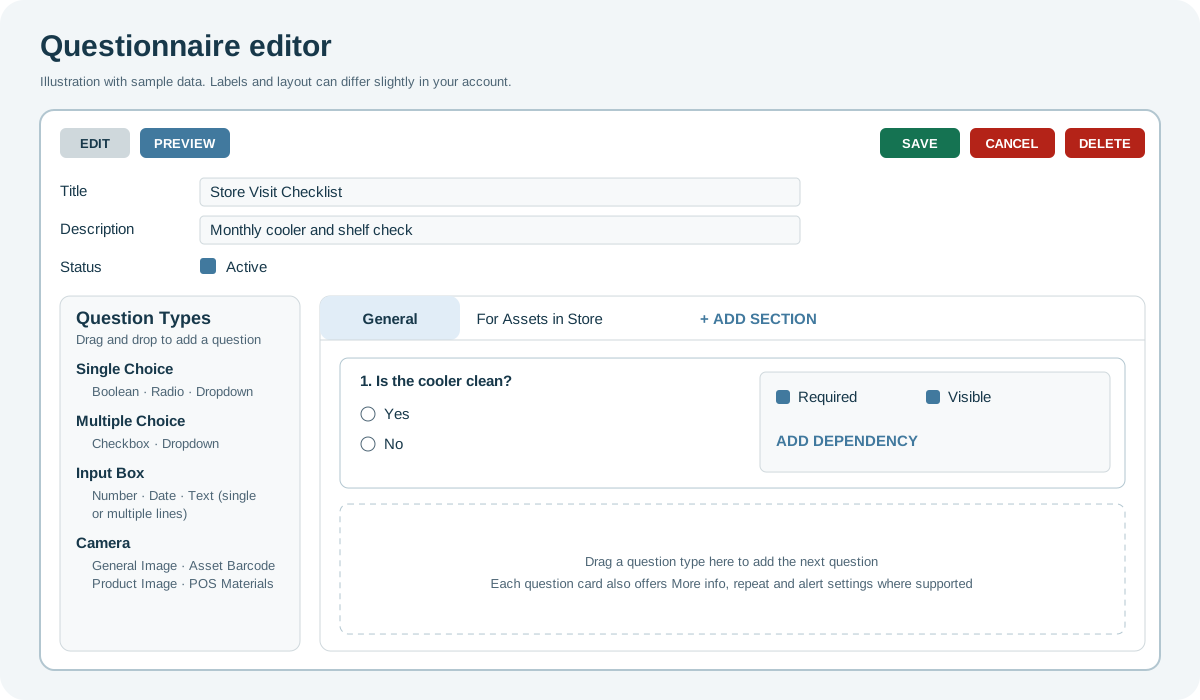
Question types
| Type | Options |
|---|---|
| Single Choice | Boolean, radio, dropdown |
| Multiple Choice | Checkbox, multi-select dropdown |
| Input Box | Number, date, single-line or multi-line text |
| Camera | General Image Capture (one or more photos); Asset Barcode Capture (compares the scanned barcode with the asset serial number); Product Image Capture (product photos, with optional before/after labels and image count); POS Materials Image Capture (photos of point-of-sale promotional material) |
Sections
Sections group questions. Select Add Section to add one. Its dynamic setting decides how often its questions are asked:
| Setting | Questions are asked |
|---|---|
| None (default) | Once |
| For Assets in Store | Once for each asset in the store |
| For Products in Asset | For each product in an asset |
| For Products in Store | For products throughout the store |
| For Products Total | For the store's product total. Check with your administrator before using it. |
Question settings
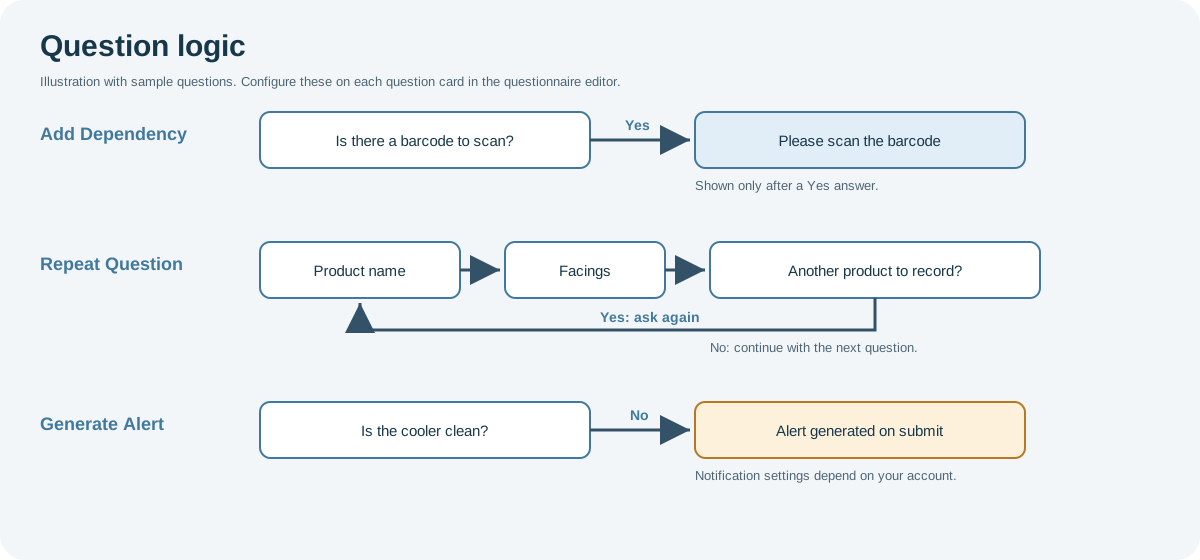
| Setting | Effect |
|---|---|
| Required | The question must be answered before the survey can be submitted. |
| Visible | When off, the question stays in the questionnaire but is hidden in the app. |
| More info | Adds guidance the rep can open, such as how to overlap photos. Shown on question types that support it. |
| Add Dependency | Shows the question only after a chosen answer to another question. |
| Repeat Question | Asks selected questions again after a chosen answer. For Boolean, radio, checkbox and dropdown questions. |
| Generate Alert | Raises an alert when the survey is submitted with a chosen answer. For Boolean, radio and checkbox questions. |
| Run image analytics | Sends Asset Barcode, Product Image and POS Materials photos for image recognition and KPIs, shown in Result Analysis. When off, the photos can be viewed but no analytics are produced. |
Next step
Use the questionnaire in a survey to schedule it and assign it to outlets and users.