
Appearance
Surveys: schedule and assign a questionnaire
A survey puts a questionnaire into the field. It sets when the questionnaire is available, how often it repeats, and which outlets and users get it. Once a survey is active, assigned reps see it in the StoreBuddy app for their assigned outlets.
Who uses it: administrators who plan store visits. Where: StoreBuddy › Surveys. The Surveys Overview lists every survey with its schedule and assignment counts, and lets you edit, copy, delete, filter and export.
Create a survey
Select Create Survey. Creating a survey takes three steps.
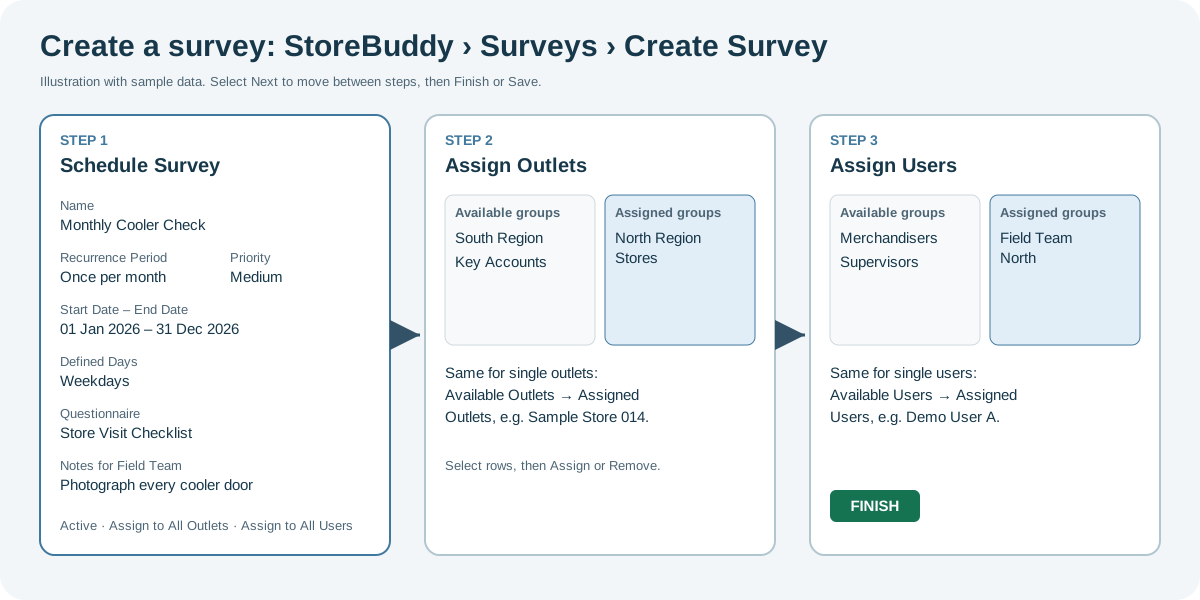
Step 1: Schedule Survey
Fill in the fields below, then select Next.
| Field | Meaning |
|---|---|
| Name, Description | The name is shown in the mobile app. |
| Recurrence Period | Every visit, once per week, month, quarter or year, or once per outlet. |
| Priority | Low, Medium or High. |
| Start Date, End Date | When the survey is valid. |
| Defined Days | Weekdays, weekends or specific days when the survey shows in the app. |
| Questionnaire | The questions to use. |
| Notes for Field Team | Instructions for reps. |
| Min Surveys for Team | Check with your administrator before using it. |
| Active, Assign to All Outlets, Assign to All Users | Turn the survey on, or assign it to every outlet or user without picking them. |
Step 2: Assign Outlets
Assign outlet groups, single outlets, or both. Each list has an Available and an Assigned side: tick rows and select Assign or Remove.
Step 3: Assign Users
Assign user groups, single users, or both, the same way.
Select Finish or Save to save the survey.
Who sees the survey in the app
A rep sees the survey when all of these are true:
- the survey is Active;
- today is between the start and end dates and is one of the defined days;
- the rep is assigned, directly or through a user group;
- the outlet is assigned, directly or through an outlet group;
- the recurrence period allows another submission at that outlet.
Next step
Follow submissions in the Inbox and Dashboard, and analyze the answers in Result Analysis.