
Appearance
Access, roles and permissions: what you can see in Playbook and why
Four things decide what you see in CoolR Playbook: how you sign in, the client you select, your role, and the outlets assigned to you. This page explains each one and what to ask for when something is missing.
Access at a glance
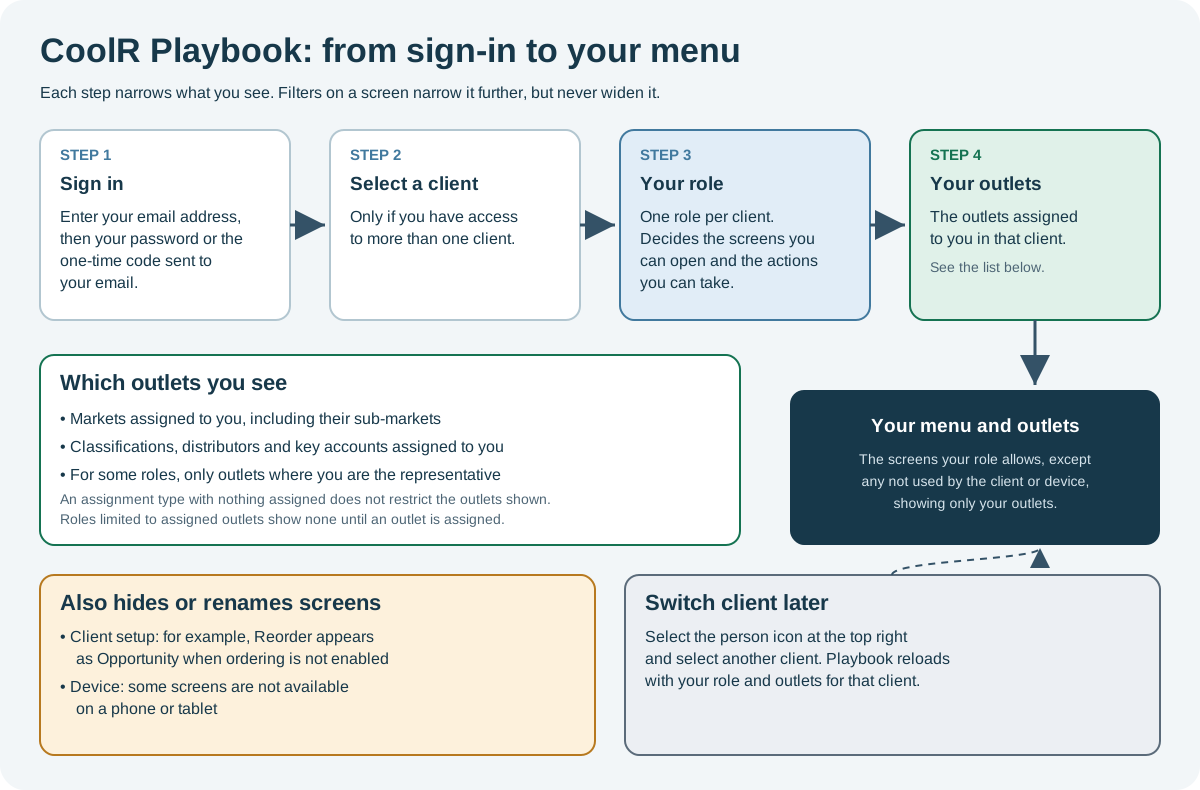
Open the full-size access diagram.
When to use it
Playbook shows each person the screens, actions and outlets that fit their job, so a field representative and a category manager see different menus. Use this page to find out why a screen or outlet is missing and who can change it.
Who uses it
| Role | Typical use |
|---|---|
| All Playbook users | Sign in, switch client, and find out why a screen or outlet is missing. |
| Administrators | Assign roles and outlets, and turn sign-in on or off for each person. |
Why it helps
- Focused menu: only the screens needed for each job appear.
- Separate data: each client's data stays with that client, and each person sees only the markets or outlets they are responsible for.
- One sign-in for several clients: switch between clients without signing out.
Where to find it
| What | Where |
|---|---|
| Sign-in | The Playbook web address for your organization. |
| Client switching | The person icon at the top right of every screen. |
| Users, roles and assignments (administrators) | Configuration > Users, in the Master Data section, on a computer. |
How it works
- You sign in with your email address and either a password or a one-time code sent by email.
- If you have access to more than one client, you select one.
- Your role and outlet assignments for that client apply.
- Playbook opens your start page. This is the screen marked with the bookmark icon next to its title or, if none is marked, your role's default screen, Outlets, or the first screen in the menu.
Step by step
Sign in
- Enter your email address and continue.
- Enter your password, or the one-time code from the email. The code is valid for 10 minutes. If it does not arrive, wait for the countdown to end and select Resend.
- If Select Client appears, select the client to work in.
- Optional: select Remember me to stay signed in on this browser for 30 days.
- Select the sign-in button.
Forgotten password: select Forgot password? below the password field and follow the steps to confirm your email address. The new password must have 7 to 20 characters, including an uppercase letter, a lowercase letter, a number and one of # ? ! @ $ % ^ & * -. It cannot match any of your last 5 passwords.
Switch client
Select the person icon at the top right, then select another client under Select Client. Playbook reloads with your role and outlets for that client. If an outlet was open, Outlets opens instead.
Why you might not see something
Role
- Each person has one role for each client, so the menu can change after switching client.
- A role controls which screens open and, separately, which actions are available on them, such as add, edit and delete. A screen can therefore appear without all of its buttons. See Role-Based Permissions.
- A menu group is hidden when the role includes none of its screens.
- Your administrator assigns your role. To change what a role includes, your administrator contacts CoolR Support.
Assigned outlets
Within each client, you see only the outlets assigned to you, with their assets, images, orders and results. Your administrator can assign:
| Assignment | Outlets shown |
|---|---|
| Markets | Outlets in those markets, including their sub-markets. |
| Classifications, distributors or key accounts | Outlets that match them. |
| Representative (some roles only) | Only the outlets where you are the assigned representative. |
An assignment type with nothing assigned does not restrict the outlets shown. For example, with no markets assigned, outlets from all markets appear. Roles limited to assigned outlets work the other way: with no outlets assigned as representative, no outlets appear.
Filters on a screen, including Global View, narrow the outlets shown but never add outlets outside your assignments. Where available, Global View can show several clients at once, with your assignments for each client applied.
Client setup and device
- Login Allowed: when an administrator turns this off for a person in a client, that person cannot sign in to that client.
- Ordering: when ordering is not enabled for the client, Reorder appears as Opportunity. See Reorder.
- Order suggestions: when order suggestions are not part of the client's CoolR service, the ordering screens and the Sales & Shopper reports are hidden, whatever the role allows.
- Device: some screens are not available on a phone or tablet. Opening one on a phone returns you to your start page.
Messages
| Message | Meaning and next step |
|---|---|
| Please enter valid username | No account exists for that email address. Check the address, or ask your administrator to add you. |
| Your account is inactive. Please contact Admin. | The account has been deactivated. Contact your administrator. |
| You do not have permission to view content on this page | Your role for this client does not include that screen. Playbook opens your start page. |
| You do not have Permissions to View anything on Dashboard, Contact Admin | Your role does not include any Playbook screens. Contact your administrator. |
| No accessible pages are available on this device. | None of the screens in your role are available on this device. Use a computer. |
Getting help
Access is set separately for each client. When something is missing, tell your administrator which client, screen or outlet you need. For changes your administrator cannot make, contact CoolR Support at support@coolr.ai.
Tips
- Check the client name at the top right before comparing figures or making changes.
- Administrators: give each person the narrowest role and outlet assignments that fit their job, and turn off Login Allowed when someone leaves.
Related pages
Last updated: November 11, 2026. Screens and options vary with your role and your organization's setup.