
Appearance
Sales & Shopper: Progress Report and Asset Drill Down
Sales & Shopper shows sales and shopper activity at your coolers: the size of suggested orders, and how often shoppers open the cooler door. Like Merchandising, it has a Progress Report tab for trends and an Asset Drill Down tab to find the outlets and coolers behind a result.
Sales & Shopper at a glance
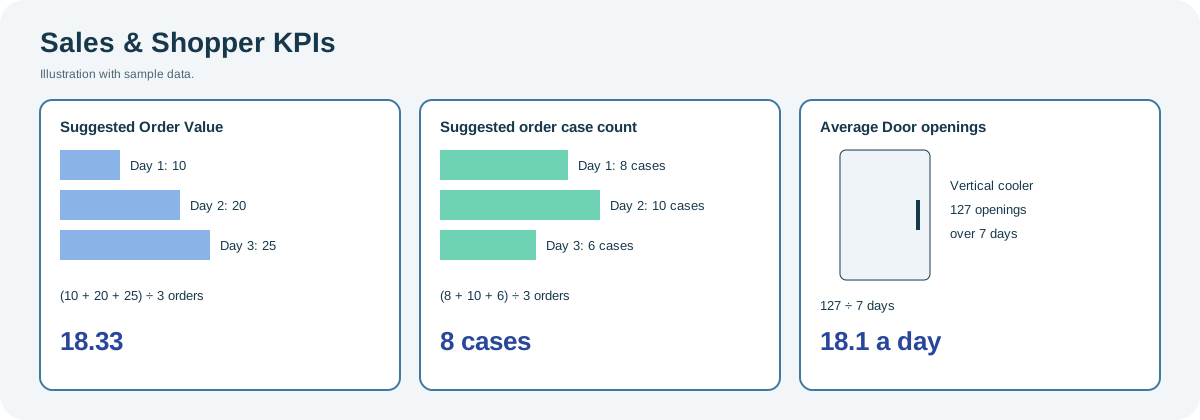
Open the full-size Sales & Shopper diagram.
When to use it
- Progress Report: follow suggested order size and shopper traffic over weeks, months or quarters.
- Asset Drill Down: find the groups, outlets and coolers with the lowest or highest values in a date range.
Who uses it
| Role | Typical use |
|---|---|
| Sales and distribution managers | Track suggested order size by market or sales rep. |
| Trade marketing managers | Compare shopper traffic between channels and outlets. |
Where to find it
Select Business Performance > Sales & Shopper Progress Report or Sales & Shopper Asset Drill Down. Both open this page; switch between them with the tabs at the top. The filter panel and cards are described on the Business Performance overview.
This area is available only when order suggestions are part of your organization's CoolR service.
KPIs
| KPI | Meaning | Formula |
|---|---|---|
| Suggested Order Value | Average value of the suggested orders in the period. | Total value of suggested orders ÷ number of suggested orders |
| Suggested order case count | Average number of cases in the suggested orders. | Total cases suggested ÷ number of suggested orders |
| Average Door openings | Average door openings per cooler per day. Applies to vertical (upright) coolers only. | Door openings per cooler per day, averaged over the period |
Using the screen
Both tabs work as they do on the Merchandising page. Choose the KPI (All KPI or one), Group by, and either Period and Last (Progress Report) or Date Range (Asset Drill Down). In Asset Drill Down, double-click a value to go from groups to outlets, to coolers, and then to the outlet card. See Progress Report and Asset Drill Down.
Use Export in the filter panel to download the Progress Report.
Why you might not see something
- Sales & Shopper is not in the menu: order suggestions are not part of your organization's CoolR service, or your role does not include it.
- Door openings are empty for some coolers: door openings apply to vertical (upright) coolers only.
Related pages
Last updated: November 12, 2026. Screens and options vary with your role and your organization's setup.