
Appearance
Imports and integrations: the System Logs screen
The System Logs screen records each data import and each order integration run for your organization:
| Screen | Shows | One row per |
|---|---|---|
| System Logs | Data imports and order integration runs, with the files sent and received. | Import or integration run |
Imports and integrations at a glance
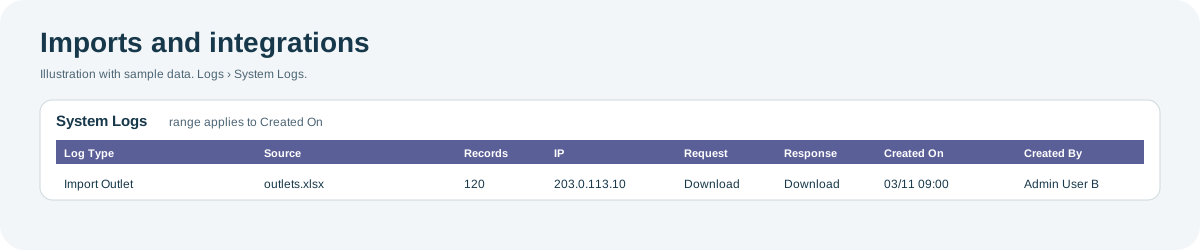
Open the full-size imports and integrations diagram.
When to use it
- To confirm that an import, such as outlets or products, was received, and how many records it had.
- To check whether an order integration with your ordering system ran or failed.
- To download the exact file sent or received, for example to share with CoolR Support.
Where to find it
Select Logs > System Logs (the screen has the same name as its menu group). The date range and table work as described in the Logs overview.
Access is role-based
System Logs is a separate permission in your role. If you cannot see it, contact your administrator or CoolR Support.
System Logs
What it shows: every data import and order integration run for your organization in the date range, newest first. The list is read-only.
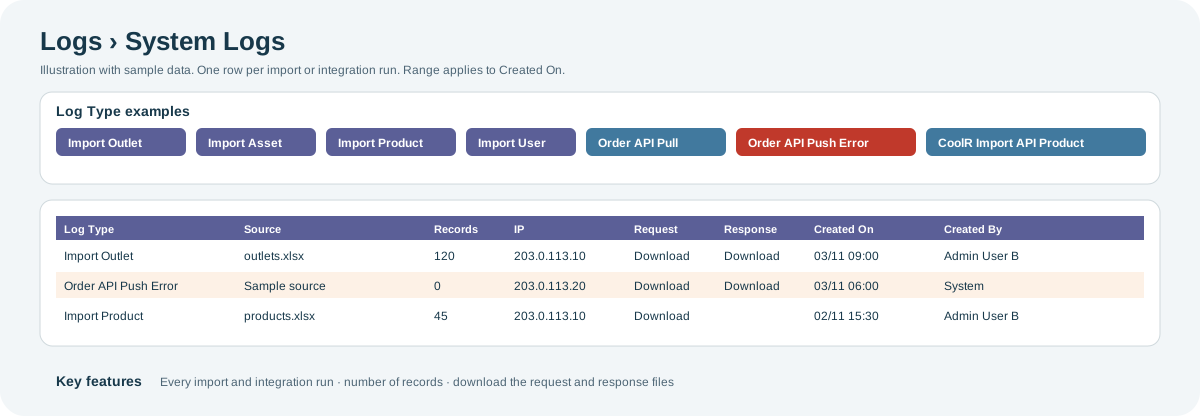
Open the full-size System Logs diagram.
Key features:
- What kind of run: Log Type names the run. Imports include Import Outlet, Import Planogram, Import Asset, Import Asset Type, Import Product and Import User. Order integration types start with Order API, such as Order API Pull and Order API Push; types ending in Error record a failed run. CoolR Import API types record data sent to the CoolR import API, such as locations, products or product pricing.
- How much was processed: Records shows the number of records in the run.
- The files themselves: select Download under Request or Response to download the file sent or received. A blank cell means no file was kept.
- Who and from where: Created By, Created On and IP show who started the run, when, and from which address.
| Columns | What they show |
|---|---|
| Log Type | The kind of import or integration run. |
| Source | Where the data came from. |
| Records | The number of records processed. |
| IP | The address the run came from. |
| Request, Response | Links to download the files sent and received. These columns cannot be sorted, filtered or exported. |
| Created On, Created By | When the run happened, and who started it. The date range applies to Created On. |
Why you might not see something
- The screen is missing from the menu: your role does not include it. Contact your administrator or CoolR Support.
- An import is missing: it falls outside the date range, or a column filter excludes it.
- There is no Download link: no request or response file was kept for that run.
Tips
- Filter Log Type by the types ending in Error to find failed order integration runs.
- When you contact CoolR Support about an import or integration, download the request and response files and include them.
Related pages
Last updated: November 16, 2026. Screens and options vary with your role and your organization's setup.