
Appearance
Alerts: work open alerts and resolve them in Playbook
The Alerts screen (Tasks > Alerts) lists the open alerts that need follow-up: every system alert, such as No Communication or Vista Insufficient Battery, and every business alert, such as Product out of stock or Foreign alert. Use it to filter alerts by type, record a diagnosis and resolution, and change who owns an alert. Some alert types can also be resolved on the screen itself, for example Location Mismatch (assign the outlet) and No Planogram (assign a planogram).
Alerts at a glance
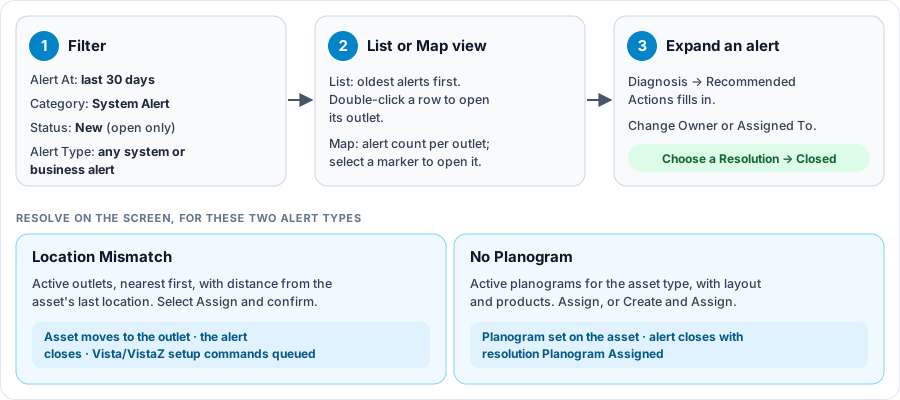
Open the full-size Alerts diagram.
When to use it
- To work through the open alerts assigned to you, oldest first.
- To see all open alerts of one type, such as No Communication or Product out of stock.
- To record what caused an alert and how it was resolved.
- To place an asset at its outlet after a walk-away or warehouse deployment, or to give it a planogram.
Who uses it
| Role | Typical use |
|---|---|
| Operations and device teams | Diagnose and close alerts; reassign them when needed. |
| Sales reps and field teams | Resolve Location Mismatch and No Planogram alerts after deployment. |
| Client administrators | Follow up on the alerts assigned to their users. |
Why it helps
- One list for follow-up: open alerts with the outlet, asset and owner on each row.
- Fix in place: assigning the outlet or planogram from the alert also closes it.
- A record of the fix: diagnosis, recommended action, resolution and action taken stay with the alert.
Where to find it
Select Tasks > Alerts in the menu. Your role needs the Tasks menu and the Alerts screen. See Access, roles and permissions.
An alert link in a notification email opens the screen on that one alert. The date range does not apply to that view.
How it works
Which alerts are listed
- All system and business alerts set up for your organization appear here. Use the Alert Type filter to show one or more types. For the alert types and what triggers them, see System Alerts and Merchandising Alerts.
- Only open alerts (status New) are listed at first. Change the Status filter to see closed ones.
- Alert Category starts on System Alert. Add Business Alert to see business alerts too.
- The date range applies to Alert At and starts at the last 30 days.
- Unless you are a super administrator, the list also starts filtered on Owner and Assigned To being you. Remove those filters to see other users' alerts.
- Rows are sorted oldest first, so the longest-open alerts are at the top.
Closing an alert
An alert closes when either of these happens:
- You choose a Resolution in the alert's form and save. The status changes to Closed at once.
- You assign the outlet for a Location Mismatch alert, or the planogram for a No Planogram alert. Playbook records the resolution (Outlet Assigned or Planogram Assigned) and the closing time in your organization's time zone.
What assigning an outlet does
Assigning the outlet from a Location Mismatch alert:
- Moves the asset to that outlet, with the outlet's latitude and longitude.
- Closes the alert with the resolution Outlet Assigned.
- For a CoolR Wi-Fi Vista, VistaZ or VistaZ Link device, sets a new device to Provisioned and queues its setup commands, so nobody needs to send them:
| Asset or outlet | Commands queued |
|---|---|
| Asset type with a door | Set Image Capture Mode, StandBy Disable, Enable/Disable Wifi Vista/VistaZ mode and Calibrate Motion Sensor |
| Asset type with no door | Set Image Capture Mode (fixed slot), Enable/Disable Wifi Vista/VistaZ mode and Take Picture |
| Warehouse outlet | Only Set Image Capture Mode, to turn image capture off |
Other device types get no commands; the asset still moves and the alert still closes.
Using the screen
Filters and views
- Choose the date range at the top, then select Apply.
- Use the table filters for Alert Category, Alert Type, Status, Owner, Assigned To, Asset Serial and Outlet Code.
- Switch between List View and Map View. The map shows the number of alerts at each outlet. Select a marker to open that outlet on its Alerts tab.
To open an alert's outlet from the list, double-click the row.
Diagnose and close an alert
- Expand the alert. The panel shows the latest image, if any, and the alert's form.
- Choose a Diagnosis. The list depends on the alert type. Diagnosis Date is set to now, and Recommended Actions fills in with the diagnosis's default action.
- Change Owner or Assigned To if someone else should handle it.
- To close the alert, choose a Resolution and, optionally, the Action Taken. Then save.
The Resolve icon
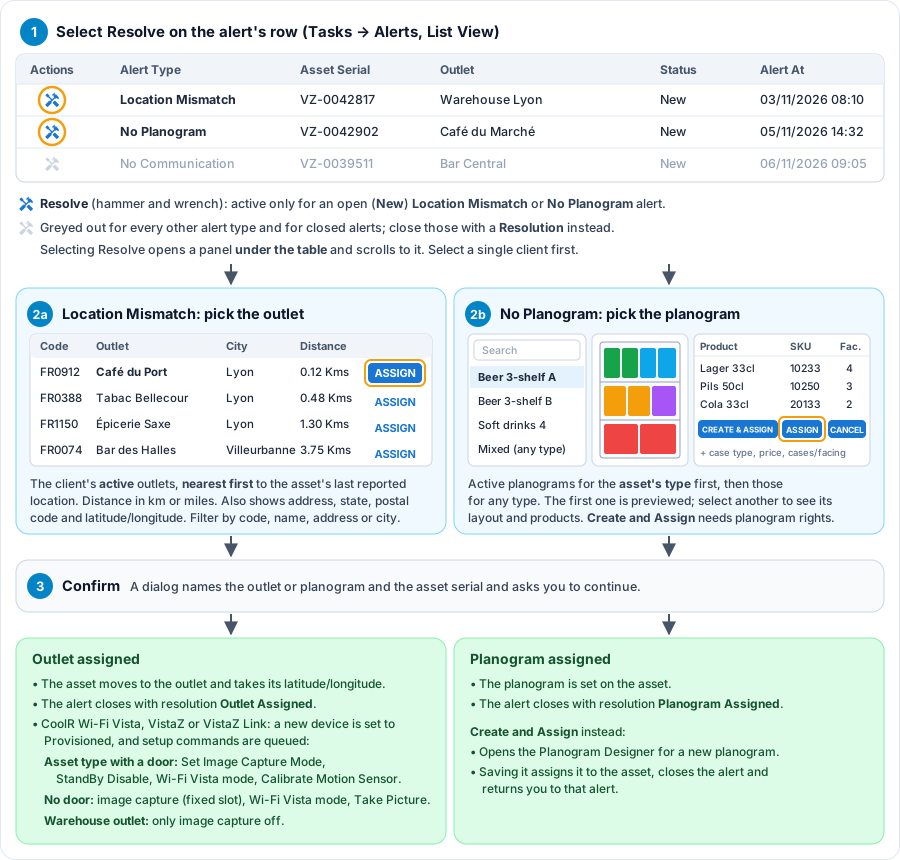
Open the full-size Resolve diagram.
The Resolve icon is in the actions column at the start of each row in the List View:
- It is active only while the alert is open (New) and its type is Location Mismatch or No Planogram.
- For every other alert type, and for closed alerts, it is grayed out. Close those alerts with a Resolution instead.
- Selecting it opens a panel under the alerts table and scrolls down to it. Select Resolve on another alert to switch to that alert.
- The alert's asset must already have an outlet, and you must have a single client selected.
Resolve a Location Mismatch alert
- Select the Resolve icon on the alert's row. Under the table, Playbook lists your client's active outlets. The nearest to the asset's last reported location come first, and there is no distance limit.
- Find the right outlet. Each row shows the code, outlet name, address, city, state, postal code, latitude/longitude and Distance (in kilometers or miles). Filter by code, name, address, city, state or postal code if needed.
- Select Assign on that outlet's row. A dialog names the outlet and the asset serial; confirm to continue.
Playbook shows "Outlet assigned successfully" and refreshes the list. See What assigning an outlet does.
If the right outlet does not exist, leave the alert open and add the outlet in Configuration > Outlets, or ask CoolR Support.
Resolve a No Planogram alert
- Select the Resolve icon on the alert's row. Under the table, Playbook lists your active planograms for the asset's type first, then those not tied to an asset type. The first one is previewed.
- Search the list by name, or select a planogram to see its shelf layout and its products, with SKU, case type, price, facings and cases per facing.
- Select Assign. A dialog names the planogram and the asset serial; confirm to continue.
Playbook sets the planogram on the asset, closes the alert with the resolution Planogram Assigned, and shows "Planogram assigned successfully". Select Cancel to close the panel without assigning.
If none fits, select Create and Assign. The Planogram Designer opens; when you save the new planogram, Playbook assigns it to the asset, closes the alert and returns you to that alert. If you leave the designer without saving, you return to the alert and it stays open.
Create and Assign appears only if your role can manage Planograms.
Export
Use the table's export to download the alerts as Excel, CSV or JSON.
Why you might not see something
- The screen is not in your menu: your role does not include Tasks or the Alerts screen.
- An alert you expect is missing: check the Status, Alert Category, Owner and Assigned To filters and the date range. The range applies to when the alert was raised.
- The Resolve icon is grayed out: the icon works only for open Location Mismatch and No Planogram alerts. Close other alert types by choosing a Resolution.
- "Please select client first": select a single client, then try again.
- "No outlet assigned": the alert's asset has no outlet, so the outlet card and the Resolve panel cannot open.
- No planograms are listed: there is no active planogram for the asset's type.
Tips
- Check the asset's reported location before assigning; it can be approximate.
- Set Assigned To instead of leaving notes elsewhere, so the alert shows in that person's list.
Related pages
Last updated: November 19, 2026. Screens and options vary with your role and your organization's setup.