
Appearance
Assets: register and maintain your coolers
An asset is a single cooler or freezer. On the Assets screen, you see your coolers, register new ones, place them at outlets, assign planograms, and keep their tracking and image settings up to date.
Assets at a glance
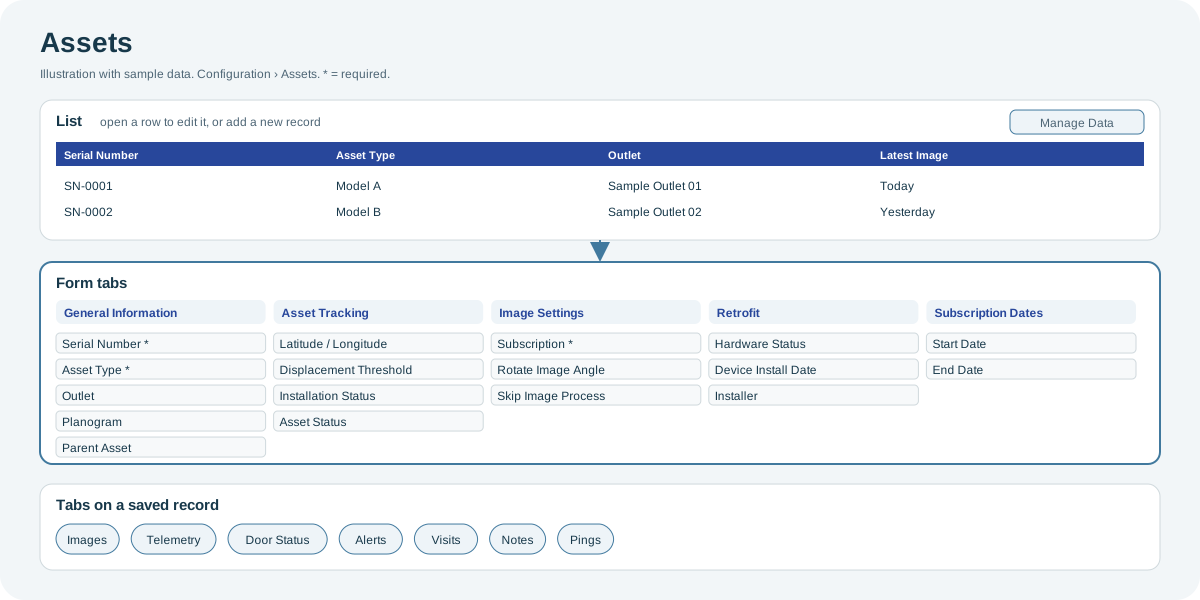
Open the full-size Assets diagram.
When to use it
When new coolers arrive, when a cooler moves to another outlet, or when a cooler's planogram, status or image settings change.
Who uses it
| Role | Typical use |
|---|---|
| Asset and deployment managers | Register coolers, place them at outlets and track delivery and installation. |
| Merchandising managers | Assign planograms to coolers. |
Why it helps
- Know where every cooler is: outlet, location and delivery details in one place.
- Accurate image recognition: the planogram and image settings determine how the cooler's images are processed.
Where to find it
Select Configuration > Assets. Filter the table by Client, Market, Channel, Classification or Key Account, and group the rows by any column. To preview a cooler's latest image, select the latest image date in its row.
Using the screen
Asset form
| Tab | Main fields |
|---|---|
| General Information | Serial Number and Asset Type (required), Parent Asset, Outlet, Planogram, Category, In-Store Location, Point of Sale, Notes, Tags. |
| Asset Tracking | Manufacturing Date, Latitude and Longitude, Displacement Threshold (meters), delivery dates, Installation Status, Asset Status, External Code, Tag Number. |
| Image Settings | Subscription (required), image rotation, and Skip Image Process for a cooler whose images should not go through image recognition. |
| Retrofit | Hardware Status (read-only), Device Install Date and Installer. Only administrators can change the install date and installer. |
| Subscription Dates | Subscription start and end dates. |
A cooler linked to a CoolR Camera shows Rotate Image 1 Angle and Rotate Image 2 Angle; a cooler with any other device shows a single Rotate Image Angle.
History tabs
A saved asset also has history tabs, such as Images, Telemetry, Door Status, Alerts, Visits, Notes and Pings. Which tabs appear depends on the cooler's device.
Import
Use Manage Data to import assets from Excel. The mandatory columns are serial number and asset type; the asset type must already exist. Planograms are optional at import. See Manage Data: import and export.
Why you might not see something
- You cannot preview a cooler's image: the image is restricted and your role cannot view restricted images, or no image has arrived yet.
- Device Install Date and Installer are read-only: only administrators can change them.
- An asset type is missing from the list: create it first on the Asset Types screen.
Related pages
Last updated: November 13, 2026. Screens and options vary with your role and your organization's setup.