
Appearance
Images and Image Events: images received and capture attempts
Two Telemetry Logs screens follow a cooler image from the camera to Playbook:
| Screen | Shows | One row per |
|---|---|---|
| Images | The images Playbook received, and their processing status. | Image received |
| Image Events | What the camera reported each time it tried to take a picture. | Capture attempt |
Together, they show whether a missing image was never taken, or was taken but never reached Playbook.
Images at a glance
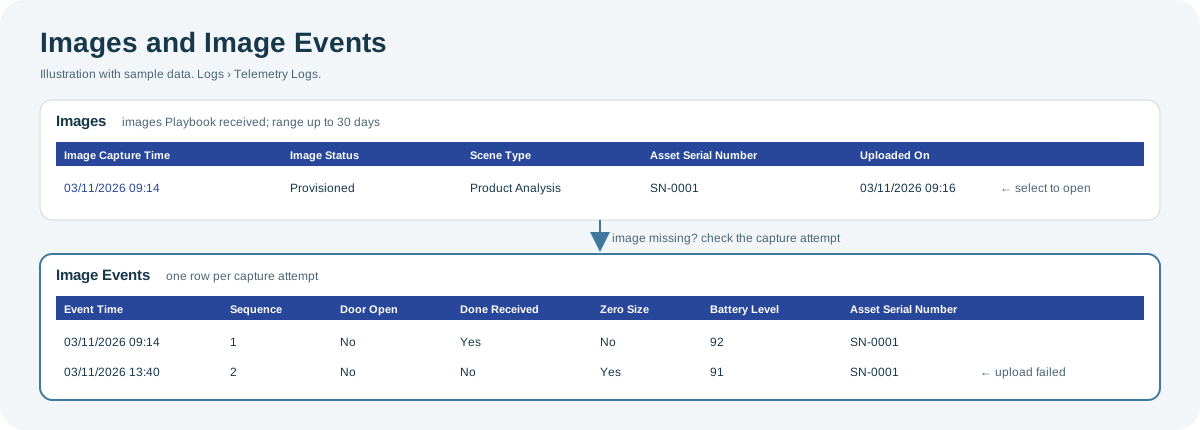
Open the full-size Images diagram.
When to use it
- To open recent images from many coolers at once.
- To find out why an image was rejected.
- To find out why a cooler sent no image: low battery, no capture trigger, or a failed upload.
Where to find it
Select Logs > Images or Logs > Image Events, under Telemetry Logs. The date range and table work as described in the Logs overview.
Access is role-based
Each of these screens is a separate permission in your role, so you might see one and not the other. If a screen you need is missing, contact your administrator or CoolR Support.
How it works
Each time the camera tries to take a picture, it records an image event. If the capture succeeds, the camera uploads the picture. When Playbook receives it, the picture appears in Images, where it is processed and given a status.
Images
What it shows: every image Playbook received from your cooler cameras, newest first, with its processing status. This is the same list as the Images tab of an asset in Assets, but across all your coolers.
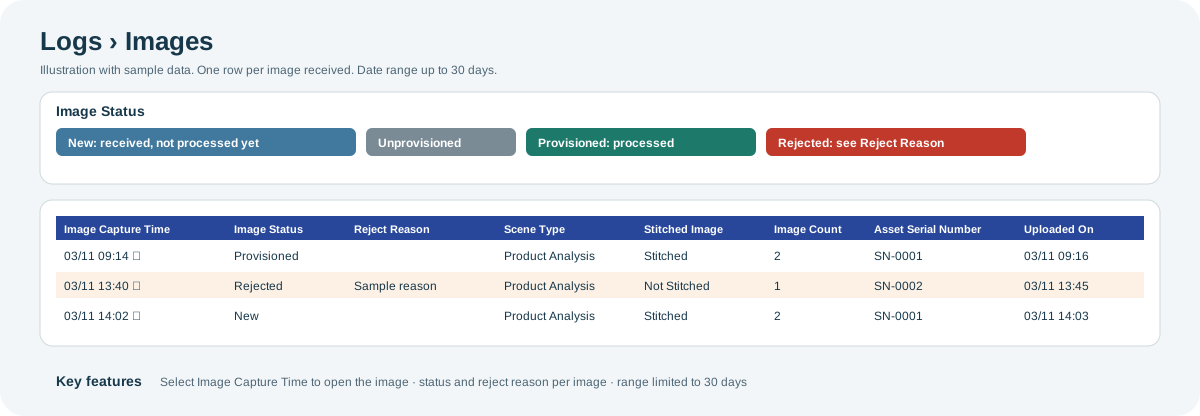
Open the full-size Images screen diagram.
Key features:
- Open the image: select Image Capture Time to open the image in the viewer.
- Processing status: Image Status is New (received, not processed yet), Unprovisioned, Provisioned (processed) or Rejected. A rejected image shows why in Reject Reason.
- What the image contains: Scene Type is the kind of picture, such as Product Analysis or Store View. Stitched Image shows whether pictures from two cameras were joined into one: Stitched, Not Stitched or Stitched Failed.
- 30-day range: the date range can be up to 30 days, so longer presets are not offered.
| Columns | What they show |
|---|---|
| Image Capture Time | When the picture was taken. Select it to open the image. |
| Image Status, Reject Reason | The processing result and, for a rejected image, why. |
| Scene Type, Stitched Image, Image Count, Shelves | What the image contains and how it was put together. |
| Asset Serial Number, Asset Type, Planogram, Device Number | The cooler and camera. |
| Uploaded On, Modified On | When Playbook received the image and when it was last updated. |
| Image1 Size, Image2 Size, Flash Sequence, Image Name | File and capture details. |
Image Events
What it shows: every capture attempt the camera reported, whether or not a picture was taken. Use it to find out what happened when an image is missing from Images.
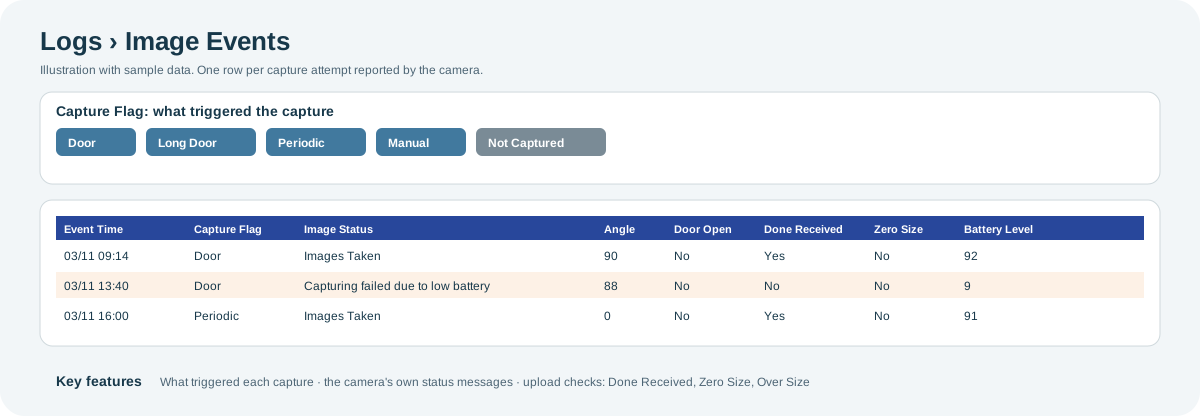
Open the full-size Image Events diagram.
Key features:
- What triggered the capture: Capture Flag is Door (the door was used), Long Door (the door stayed open), Periodic (a scheduled picture), Manual, or Not Captured.
- The camera's own messages: Image Status shows what the camera reported, such as Images Taken, Image capture disabled, Door Open angle not achieved or Capturing failed due to low battery. A row can show more than one message.
- Upload checks: Done Received shows whether the upload completed. Zero Size and Over Size flag an empty or oversized file.
- Battery at capture: Battery Level shows the camera's battery level at the time, which explains captures that failed because of low battery.
| Columns | What they show |
|---|---|
| Event Time, Created On | When the camera tried to take the picture, and when Playbook received the event. |
| Capture Flag, Image Status | What triggered the capture, and what the camera reported. |
| Sequence, Angle, Door Open | Capture details, including the door angle and whether the door was open. |
| Done Received, Zero Size, Over Size | Whether the upload completed, and whether the file was empty or too large. |
| Battery Level, Gateway MAC | The camera's battery level and the gateway it reported through. |
| Asset Serial Number, Device Serial, Device Type | The cooler and camera. |
Why you might not see something
- A screen is missing from the menu: your role does not include that screen. Contact your administrator or CoolR Support.
- The image opens as "image not found": you can open only provisioned images, unless your role also lets you view images that were rejected or are still being processed.
- Images offers no periods longer than 30 days: its range is limited to 30 days.
- An image event has no matching image: the capture failed or the upload did not complete. Check Image Status, Done Received, Zero Size and Over Size on the event.
Tips
- If a cooler sends no images, filter Image Events by its Asset Serial Number. No rows means the camera did not try to take a picture; rows with error messages show why a capture failed.
- Filter Images by Image Status to list rejected images and their reasons.
Related pages
Last updated: November 16, 2026. Screens and options vary with your role and your organization's setup.