
Appearance
Recognition Families: group products that look alike
The Recognition Families screen groups your products that image recognition may treat as the same product, such as other sizes or flavors of one brand.
Recognition Families at a glance
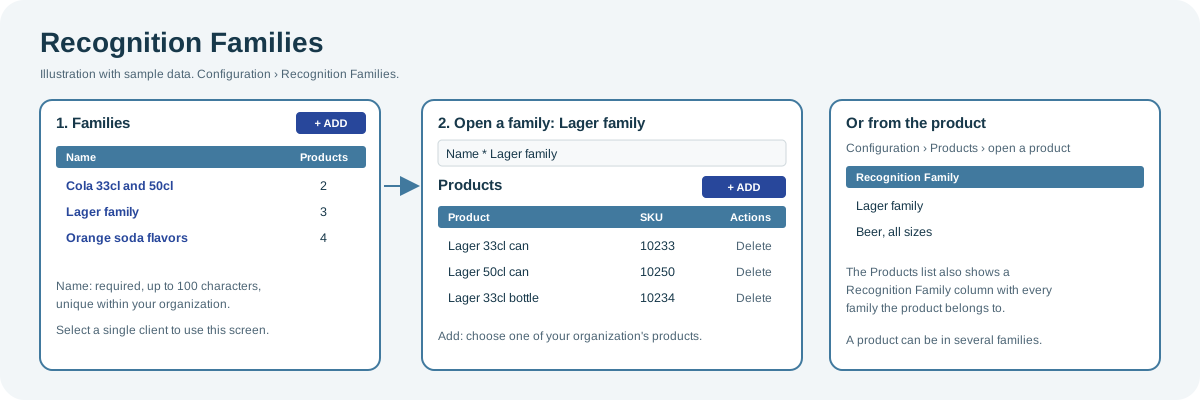
Open the full-size Recognition Families diagram.
When to use it
When several of your products look alike in cooler images, for example the 33cl and 50cl cans of one beer, and you want to record that they belong together.
Who uses it
| Role | Typical use |
|---|---|
| Category and merchandising managers | Create families and keep their products up to date. |
| Organization administrators | Review the families set up for the organization. |
Why it helps
- One place for look-alike products: the families and their products are listed together.
- Visible on products: the Products list shows which families each product belongs to.
Where to find it
Select Configuration > Recognition Families. Select a single client first; the screen does not open with several clients selected.
How it works
- A family belongs to your organization. Its Name is required, up to 100 characters, and must be unique within your organization.
- A product can belong to several families, but only once to each.
- You can add only your organization's products.
- The Products column shows how many products each family has.
Using the screen
To create a family:
- Select Add, enter a Name and save.
- In the family's Products list, select Add, choose a product and save. Repeat for each product.
To remove a product from a family, delete it from the family's Products list. To change the product, remove it and add the other one.
You can also manage the families from the product: open the product in Configuration > Products and use its Recognition Family list. The Products table has a Recognition Family column with every family the product belongs to.
Why you might not see something
- The screen asks you to select a client: select a single client, then open it again.
- A product is not offered: it belongs to another organization.
- The name is rejected: another family in your organization has the same name.
- The screen is not in your menu: your role does not include it.
Related pages
Last updated: November 19, 2026. Screens and options vary with your role and your organization's setup.