
Appearance
Users: manage who can sign in and what they see
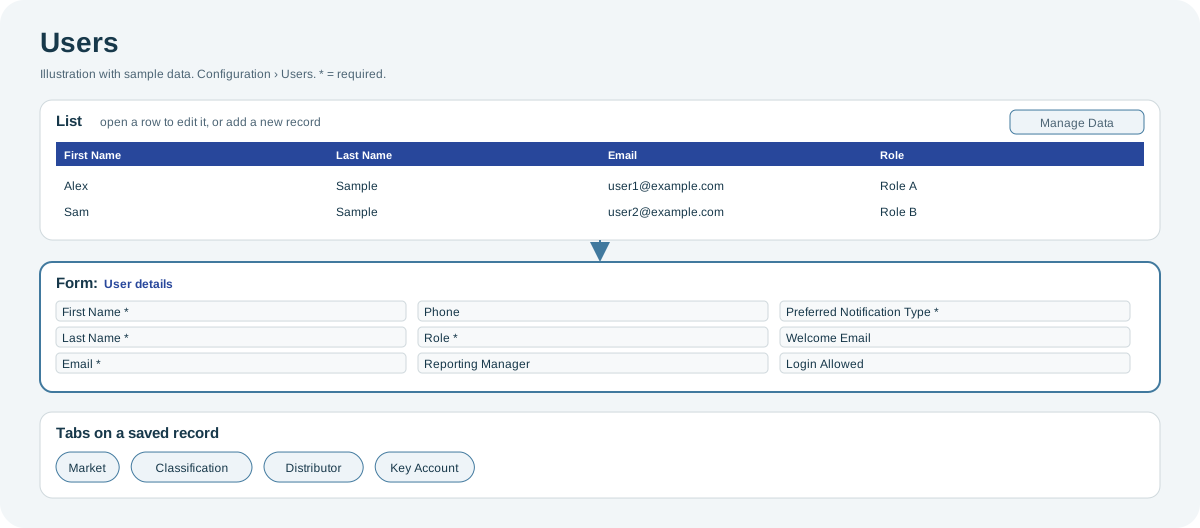
The Users screen lists the people in your organization who use Playbook and the CoolR apps. Here you add users, set their role and notification preferences, and limit them to markets, distributors, classifications or key accounts.
Users at a glance
Open the full-size Users diagram.
When to use it
When someone joins, changes role or leaves, or when their area of responsibility changes.
Who uses it
| Role | Typical use |
|---|---|
| Organization administrators | Add users, assign roles and limit their data. |
Why it helps
- Right access for each person: the role determines the screens and actions; markets and other limits determine the data.
- Fast onboarding: a welcome email tells new users how to sign in.
Where to find it
Select Configuration > Users.
How it works
The Role determines which screens and actions a user has. Market, Distributor, Classification and Key Account limit the outlets the user sees. See Access, roles and permissions.
Using the screen
User form
| Field | Notes |
|---|---|
| First Name, Last Name, Email | Required. The email is the sign-in name. |
| Phone | Optional. |
| Role | Required. |
| Reporting Manager | The user's manager. |
| Preferred Notification Type | Required: how the user receives notifications. |
| Welcome Email | Sends a welcome email. On by default. |
| Login Allowed | Turn off to stop the user from signing in to this organization. On by default. |
| External Code, Tags | Optional. |
When you add a user, you can select markets, distributors, classifications and key accounts directly on the form. On a saved user, they appear as tabs.
Import
Use Manage Data to import users from Excel. The mandatory columns are email, first name, last name, role, phone and notification type. If you will limit users to markets, create the markets first. See Manage Data: import and export.
Why you might not see something
- There is no impersonate column: only administrators and client administrators can sign in as another user.
- A user cannot sign in: check Login Allowed.
Related pages
Last updated: November 13, 2026. Screens and options vary with your role and your organization's setup.