
Appearance
Disabled Products: record products that are unavailable for a period
The Disabled Products screen (Tasks > Disabled Products) keeps a list of products marked as unavailable from a start date to an end date, with tags and a note explaining why.
Disabled Products at a glance
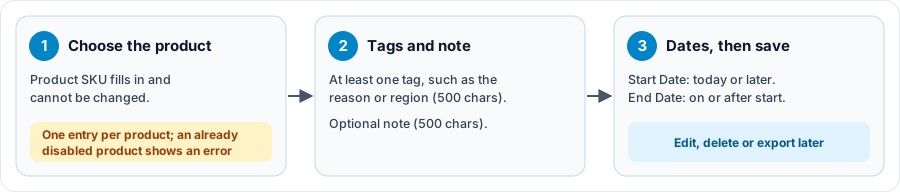
Open the full-size Disabled Products diagram.
When to use it
- To record that a product is unavailable for a period, for example during a supply shortage or a delisting.
Who uses it
| Role | Typical use |
|---|---|
| Account and category teams | Record and review unavailable products. |
Where to find it
Select Tasks > Disabled Products in the menu. Your role needs the Tasks menu and access to products.
How it works
- Each product can have only one entry. A product that already has one shows an error when chosen.
- The Product SKU fills in from the product and cannot be changed.
- The start date cannot be in the past, and the end date must be on or after the start date.
- Deleting an entry removes it from the list, so the product can be added again.
Using the screen
To add a disabled product:
- Select Add.
- Choose the Product Name. The Product SKU fills in.
- Add at least one Tag, for example the reason or the affected region. Tags can total up to 500 characters.
- Optionally, add a Note of up to 500 characters.
- Set the Start Date and End Date, then save.
To change an entry, open it from the Product SKU column. To remove one, delete it from the table. Use the table's export to download the list.
Why you might not see something
- The screen is not in your menu: your role does not include Tasks or access to products.
- You cannot choose a product: it already has an entry. Edit that entry instead.
Related pages
Last updated: November 19, 2026. Screens and options vary with your role and your organization's setup.