
Appearance
Users, email and subscriptions: sign-ins, emails sent and active subscriptions
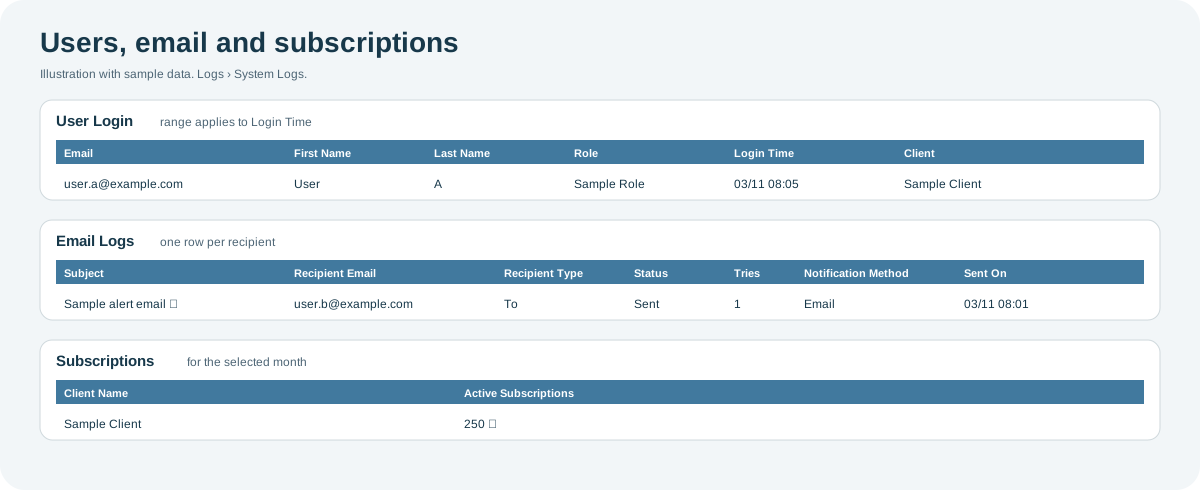
Three System Logs screens cover your account's users, messages and subscriptions:
| Screen | Shows | One row per |
|---|---|---|
| User Login | Who signed in to Playbook, when, and with which role. | Sign-in |
| Email Logs | The emails and notifications Playbook sent, and whether each went out. | Recipient of a message |
| Subscriptions | How many subscriptions were active in a month, and which ones. | Client, then subscription |
Users, email and subscriptions at a glance
Open the full-size users, email and subscriptions diagram.
When to use it
- To check who uses Playbook, and when someone last signed in.
- To confirm that an alert email or report was sent to the right people.
- To see how many assets or devices had an active subscription in a month.
Where to find it
Select Logs and then User Login, Email Logs or Subscriptions, under System Logs. User Login and Email Logs use the date range and table described in the Logs overview. Subscriptions uses a month instead.
Access is role-based
Each of these screens is a separate permission in your role, so you might see some and not others. If a screen you need is missing, contact your administrator or CoolR Support.
User Login
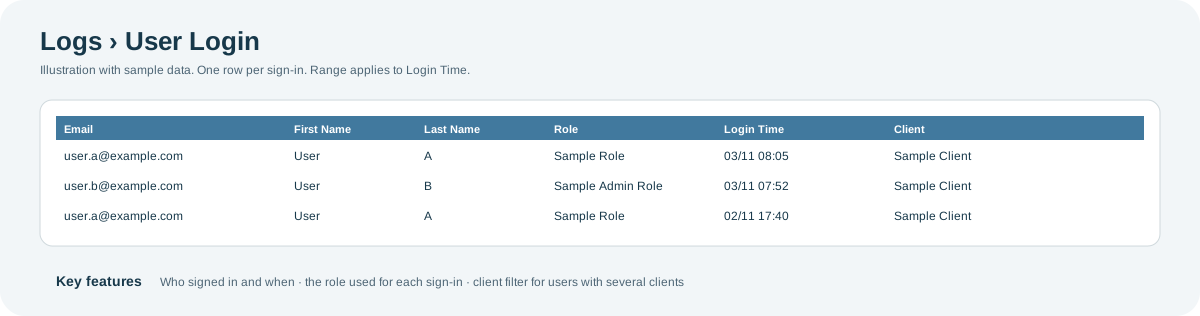
What it shows: every sign-in to Playbook in the date range, newest first, with the user and the role they signed in with.
Open the full-size User Login diagram.
Key features:
- Who and when: Email, First Name, Last Name and Login Time for each sign-in.
- Role used: Role shows the role the user signed in with.
- Several clients: if you can access more than one client, choose them in the filter panel next to the date range.
| Columns | What they show |
|---|---|
| Email, First Name, Last Name | Who signed in. |
| Role | The role they signed in with. |
| Login Time | When they signed in. The date range applies to this time. |
| Client | The client they signed in to. |
Email Logs
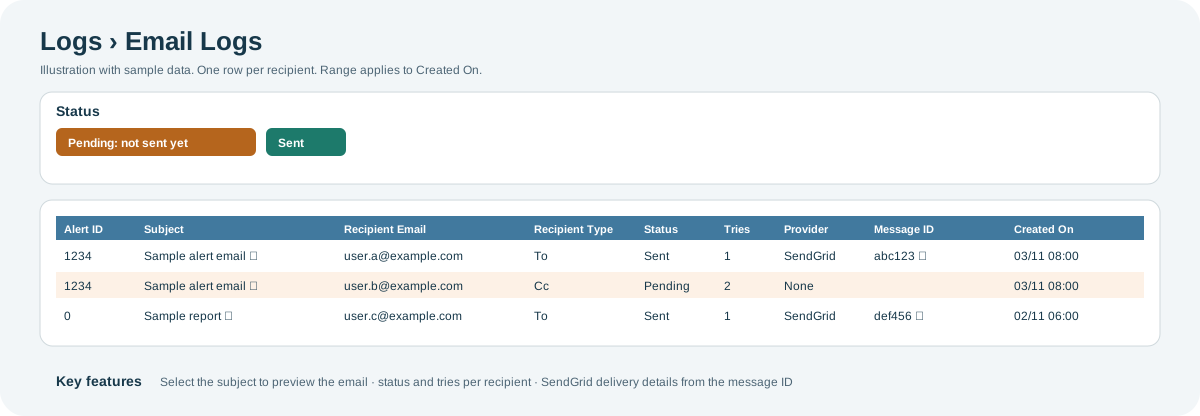
What it shows: the messages Playbook sent, such as alert emails and reports, with one row per recipient. Use it to check whether a message was sent, and to whom.
Open the full-size Email Logs diagram.
Key features:
- Was it sent? Status is Pending (not sent yet) or Sent. Tries shows how many times Playbook tried to send it, and Sent On shows when it was sent.
- Read the email: select the Subject to open a preview of the email. For your safety, the preview blocks scripts, forms and remote images.
- Delivery details: when Provider is SendGrid, select the Message ID to see the sender, recipient, subject, delivery status and last event.
- Who received it: Recipient Type is To, Cc, Bcc, Primary or Separate. Notification Method is Email, SMS, Voice, Mobile Notification or WhatsApp Notification.
- Alert emails: Alert ID identifies the alert that triggered the email. It is 0 for messages not tied to an alert.
| Columns | What they show |
|---|---|
| Client, Alert ID | The organization the message was sent for, and the alert that triggered it. |
| Subject, From | The message. Select the subject to open it. |
| Recipient Name, Recipient Email, Recipient Type | Who it was sent to, and how. |
| Status, Tries, Sent On | Whether and when it was sent. |
| Notification Method, Provider, Message ID | How it was sent, and the provider's reference for it. |
| Created On | When the message was created. The date range applies to this time. |
Subscriptions
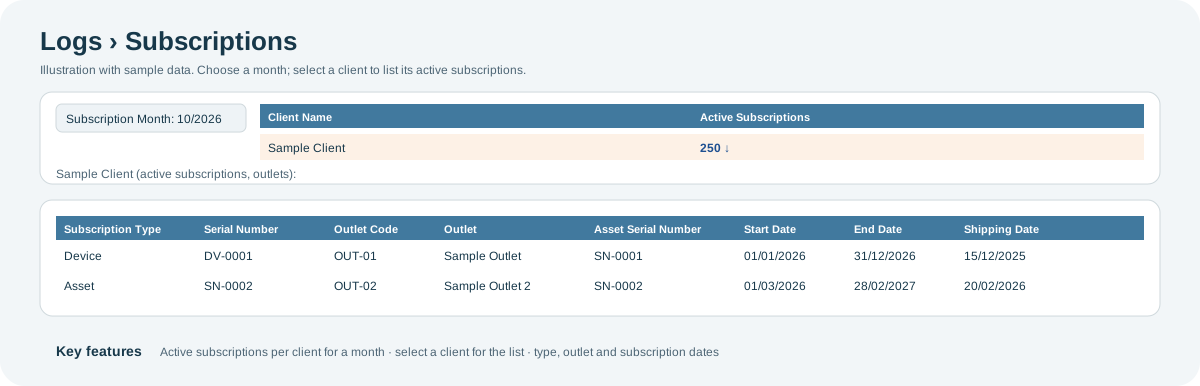
What it shows: for the month you choose, the number of active subscriptions for each client. Select a client to list its active subscriptions.
Open the full-size Subscriptions diagram.
Key features:
- Choose a month: Subscription Month opens on the previous month. A subscription counts as active if it ran at any time in that month.
- Count per client: Active Subscriptions shows the number for each client. The first client's list opens automatically; select another client to see theirs.
- The subscriptions: each one shows its Subscription Type (Device or Asset), Serial Number, outlet, Asset Serial Number, Start Date, End Date and Shipping Date.
| Subscription list columns | What they show |
|---|---|
| Subscription Type | Device or Asset. |
| Serial Number, Asset Serial Number | The device or asset subscribed. |
| Outlet Code, Outlet | Where it is installed. |
| Start Date, End Date | When the subscription runs. |
| Shipping Date | When the device or asset was shipped. |
Why you might not see something
- A screen is missing from the menu: your role does not include that screen. Contact your administrator or CoolR Support.
- A sign-in or email is missing: it is outside the date range or the selected clients. Widen the range or check the client selection.
- An email has no preview: its message body was not stored.
- The Message ID cannot be selected: delivery details are available only for messages sent through SendGrid.
- Subscriptions shows no clients: no subscription was active in the selected month.
Tips
- On Email Logs, filter Status by Pending to find messages that have not gone out yet.
- To check that a person received an alert, filter Email Logs by Recipient Email and compare Alert ID with the alert on the Activity page.
- To see a person's sign-in history, filter User Login by Email.
Related pages
Last updated: November 16, 2026. Screens and options vary with your role and your organization's setup.