
Appearance
Sensor readings: telemetry, door, battery and motion records
Four Telemetry Logs screens list the readings that your cooler sensors send, one kind of reading per screen:
| Screen | Shows | One row per |
|---|---|---|
| Telemetry | Temperature, humidity, light, battery and door state. | Sensor reading |
| Door Status | When the door opened and closed, and for how long. | Door opening |
| Battery | Battery level, rating and voltage. | Battery report |
| Motion | When the device detected movement. | Movement |
Sensor readings at a glance
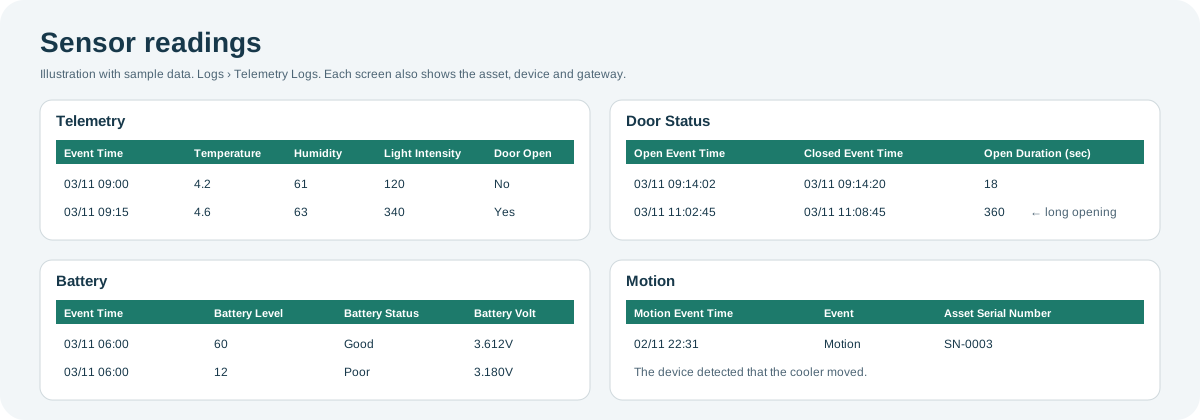
Open the full-size sensor readings diagram.
When to use it
- To check a cooler's temperature over a period, for example after a complaint about warm products.
- To find doors left open, or coolers that are rarely opened.
- To find devices with low batteries before they stop reporting.
- To see whether a cooler was moved.
Where to find it
Select Logs and then Telemetry, Door Status, Battery or Motion, under Telemetry Logs. The date range and table work as described in the Logs overview.
Access is role-based
Each of these screens is a separate permission in your role, so you might see some and not others. If a screen you need is missing, contact your administrator or CoolR Support.
Every screen also shows the cooler and device (Asset Serial Number, Device Serial, Device Type), the device's Time Zone, Created On (when Playbook received the reading), and the gateway it came through (Gateway MAC, Gateway Number).
Telemetry
What it shows: the regular readings from the cooler's sensors. Each row is one reading of the conditions inside the cooler at its Event Time.
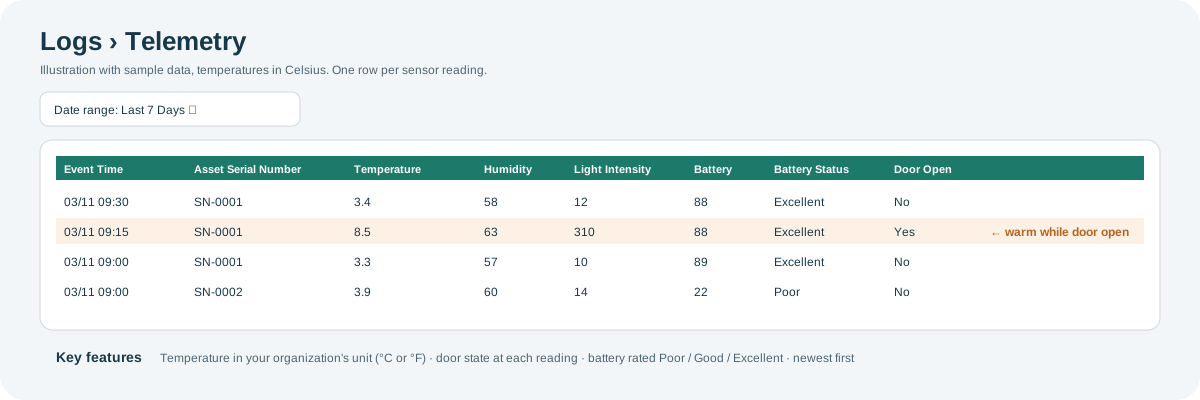
Open the full-size Telemetry diagram.
Key features:
- Temperature in your organization's unit: temperatures are in Celsius or Fahrenheit, following the Temperature Unit in System. Enter temperature filter values in the same unit, for example Temperature greater than 8 for Celsius.
- Door state at each reading: Door Open shows whether the door was open at the time, which can explain a warm reading.
- Battery rating: Battery Status rates the Battery level the same way as the Battery screen.
| Columns | What they show |
|---|---|
| Event Time | When the reading was taken. |
| Temperature, Humidity, Light Intensity | The conditions inside the cooler. |
| Battery, Battery Status | The device's battery level and its rating. |
| Door Open | Whether the door was open at the time of the reading. |
Door Status
What it shows: every time a cooler door was opened. The row is added when the door closes, so it holds the open time, the close time and the duration.
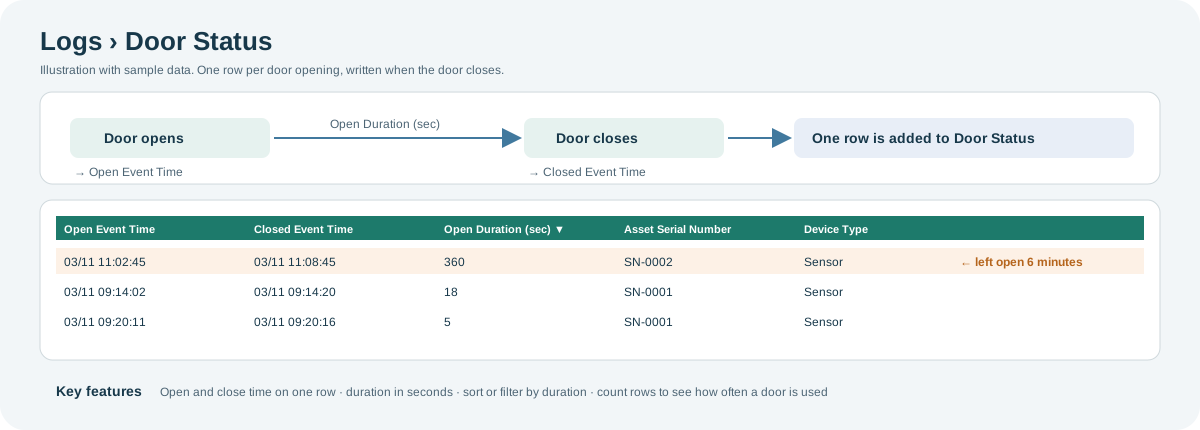
Open the full-size Door Status diagram.
Key features:
- One row per opening: the open time, close time and duration are on the same row.
- Duration in seconds: sort by Open Duration (sec) to find the longest openings, or filter it; for example, greater than 300 finds openings longer than five minutes.
- Door activity: a cooler's row count in the date range is the number of times its door was opened.
| Columns | What they show |
|---|---|
| Open Event Time | When the door opened. |
| Closed Event Time | When the door closed. |
| Open Duration (sec) | How long the door was open, in seconds. |
Battery
What it shows: battery reports from battery-powered devices, such as cameras. Each row is one report.
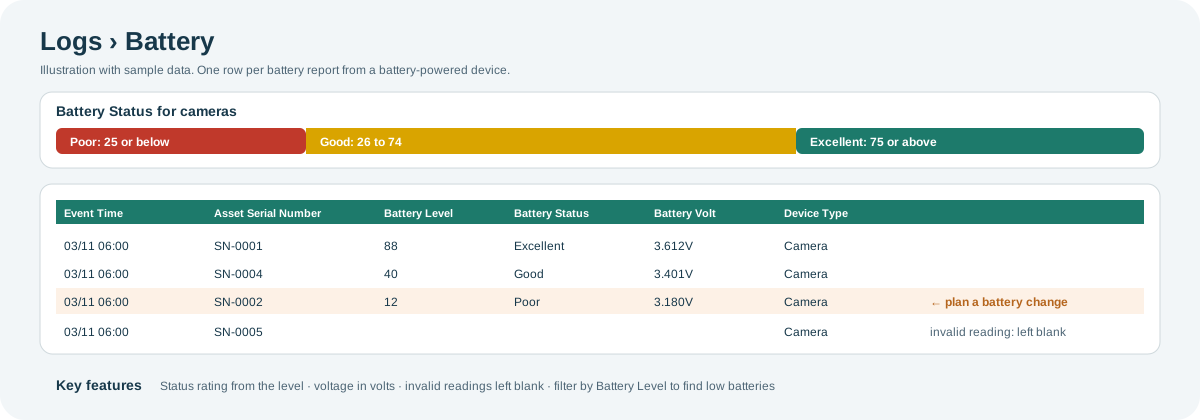
Open the full-size Battery diagram.
Key features:
- Battery rating: Battery Status turns the level into a rating. For cameras, the level runs from 0 to 100: Poor is 25 or below, Good is 26 to 74 and Excellent is 75 or above. For other devices, Playbook compares the level with configured minimum and maximum levels.
- Voltage: Battery Volt shows the battery voltage in volts, for example 3.612V.
- Invalid readings left blank: if a device sends an invalid reading, Battery Level and Battery Status are left blank instead of showing a wrong value.
| Columns | What they show |
|---|---|
| Event Time | When the device reported its battery. |
| Battery Level | The battery level the device reported. |
| Battery Status | Poor, Good or Excellent, based on the level. |
| Battery Volt | The battery voltage, in volts. |
| MAC Address | The device's MAC address. |
Motion
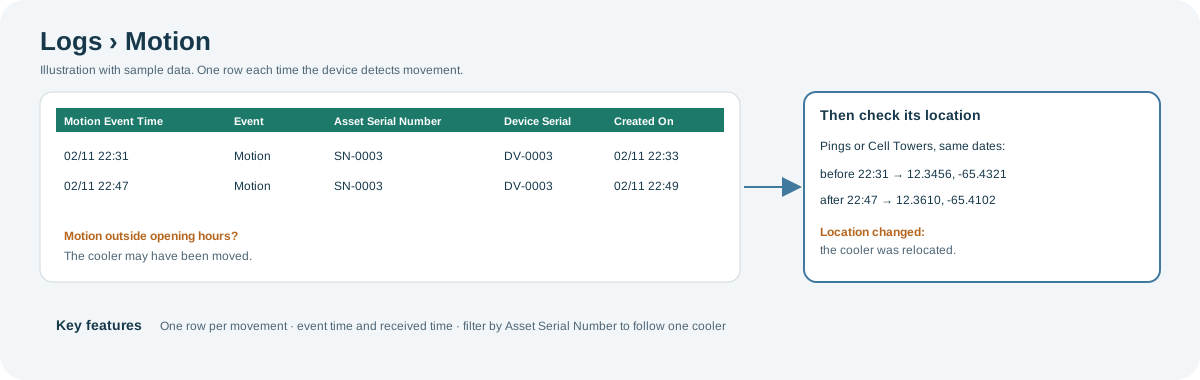
What it shows: each time a device detected movement, one row per motion event.
Open the full-size Motion diagram.
Key features:
- One row per movement: Event is always Motion; Motion Event Time is when it happened.
- Check for relocation: movement alone does not mean the cooler is somewhere new. Compare its location in Pings or Cell Towers before and after the movement.
| Columns | What they show |
|---|---|
| Motion Event Time | When the movement was detected. |
| Event | The type of event: Motion. |
Why you might not see something
- A screen is missing from the menu: your role does not include that screen. Contact your administrator or CoolR Support.
- A cooler has no rows: its device does not have that sensor, or it sent no readings in the date range.
- Battery Level and Battery Status are blank: the device sent an invalid reading.
- Battery Volt is blank: the device did not report a voltage.
- A temperature filter returns nothing: enter the value in your organization's temperature unit.
- Battery Status or Time Zone cannot be sorted or filtered: filter on Battery Level instead.
Tips
- To check one cooler, filter by Asset Serial Number and compare Telemetry with Door Status for the same hours.
- Filter Battery by Battery Level to list devices that will need a battery change soon.
Related pages
Last updated: November 16, 2026. Screens and options vary with your role and your organization's setup.